
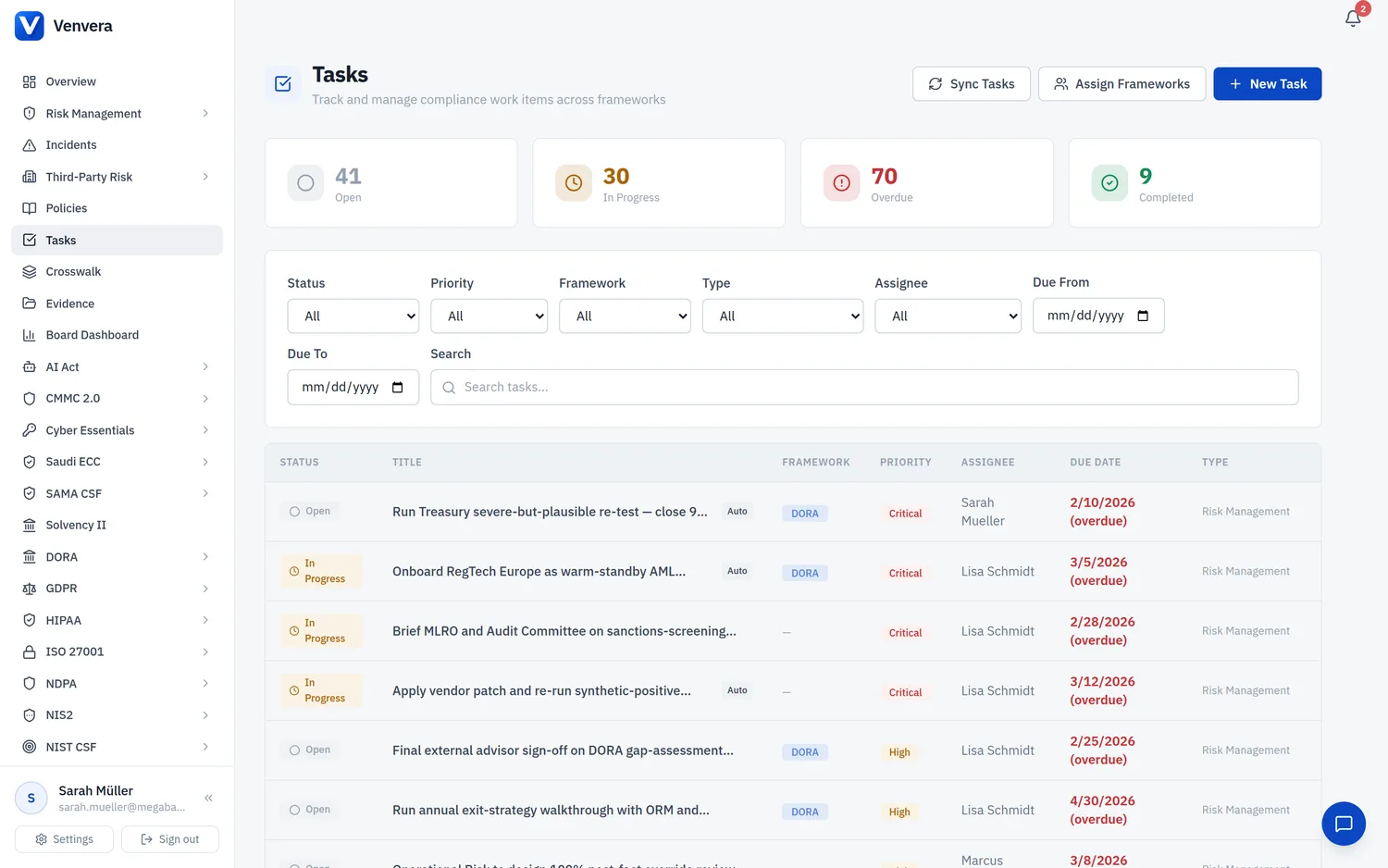
Clicking any task in the list opens its detail page, where you can view full information, update the status, edit fields, and follow links back to the source compliance record.
Page Layout
Header
The header shows the task title, status badge, priority badge, framework badge, and an "Auto-generated" indicator if the task was created by the sync engine. An "Overdue" badge appears in red if the task is past its due date.
Left Column - Content
- Description - the full task description. Click "Edit" to modify inline.
- Source Reference (auto-generated tasks only) - a card showing the originating compliance record's type, title, and current status. Includes a link icon to navigate to the source module.
- Update Status - action buttons to progress the task through its lifecycle.
Right Column - Metadata
A sidebar card displays:
- Assignee
- Framework
- Task Type
- Priority
- Due Date
- Completed At (when applicable)
- Created By, Created date, and Last Updated
Changing Task Status
Click Start Working to signal you've begun the task.
Click Mark Complete. The system records the completion timestamp automatically.
Click Dismiss if the task is no longer relevant. Dismissed tasks don't count toward completion metrics and can be filtered out.
Completed or dismissed tasks can be reopened by clicking Reopen.
Editing Task Details
Click the Edit button in the header to enter edit mode. You can modify:
- Title - change the task name
- Description - update the full description
- Priority - change between Critical, High, Medium, Low
- Assignee - re-assign to a different user, or to a group so the whole team shares the task (Admins only)
- Due Date - set or change the deadline
Click Save to apply changes or Cancel to discard.
Deleting a Task
Admins can delete a task by clicking the trash icon in the header. A confirmation dialog appears before deletion. Deleted tasks are permanently removed and cannot be recovered.
If you delete an auto-generated task and the source record is still non-completed, the task will be re-created on the next sync. To permanently skip an auto-generated task, use Dismiss instead of Delete.
Source Reference Links
Auto-generated tasks include a Source Reference card that shows:
| Source Type | Links To |
|---|---|
| Gap Assessment | DORA / NIS2 Gap Assessment page |
| Remediation Plan | DORA Gap Assessment page |
| Incident | Incidents page |
| Policy | Policies page |
| GDPR Assessment / DPIA | Relevant GDPR module page |
| Data Subject Request | GDPR Data Subject Requests page |
| ISO 27001 Control / Assessment / Finding | Relevant ISO 27001 page |
| AI System / AI Act Assessment | Relevant AI Act page |
| SOC 2 Control / Assessment / Finding | Relevant SOC 2 page |
| NIST CSF Subcategory / Control / Assessment | Relevant NIST CSF page |