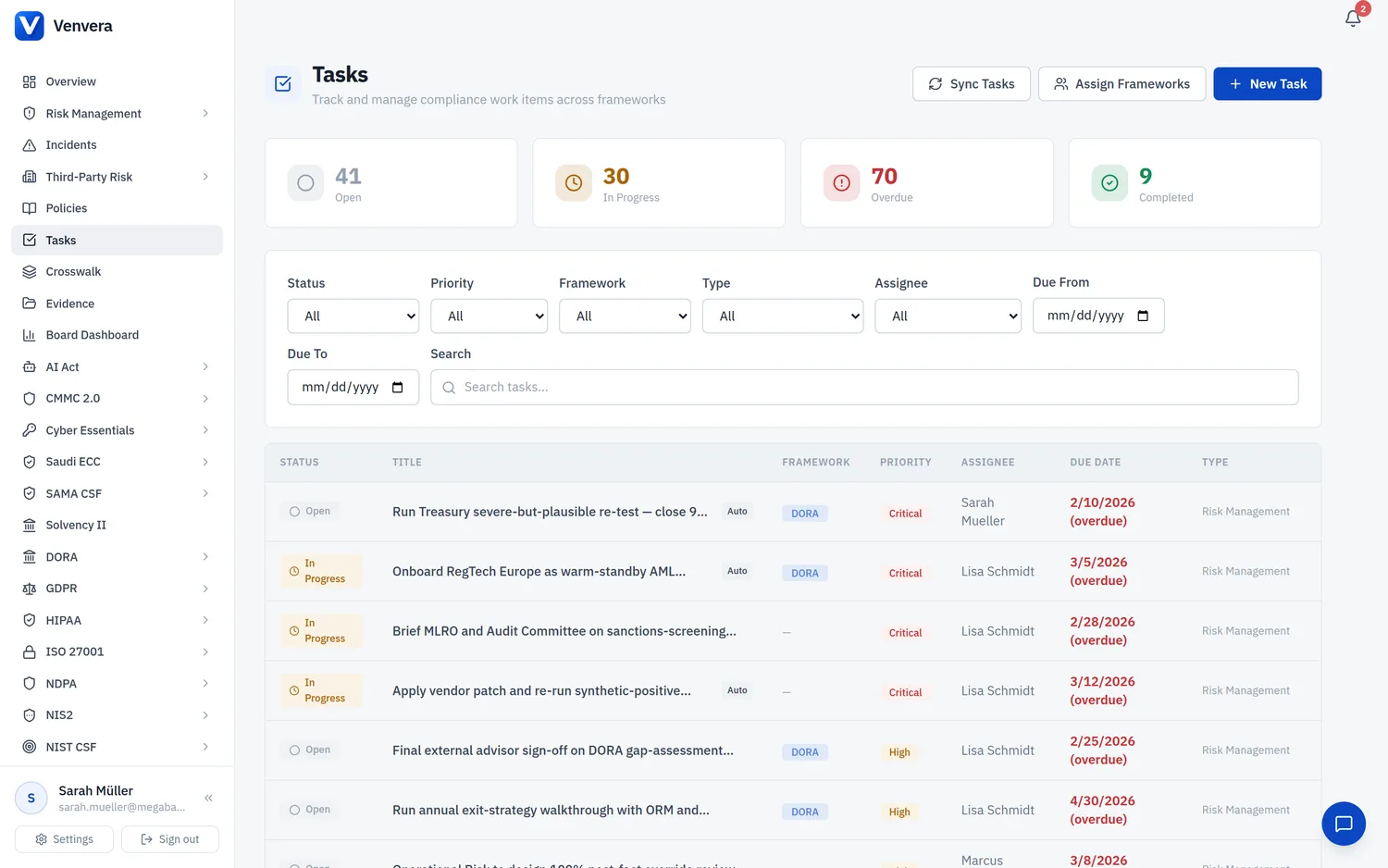
The Tasks module in Venvera provides a centralised view of all compliance work items across every framework your organisation has enabled. Tasks can be auto-generated from non-completed compliance items (gap assessments, controls, incidents, etc.) or manually created for ad-hoc compliance work.
Key Concepts
| Concept | Description |
|---|---|
| Framework Assignment | An Admin assigns one or more users to a framework (e.g., DORA, GDPR). The system then auto-generates tasks for that user from all non-completed items in the framework. |
| Auto-Generated Task | Created automatically by scanning source tables (gap assessments, controls, incidents, etc.). Marked with an "Auto" badge. Auto-completed when the source record reaches a completed state. |
| Manual Task | Created by an Admin or Editor for ad-hoc work. Not linked to a source record. Can be assigned to any user. |
| Sync | Admins can trigger a full re-sync that scans all framework source tables, creates new tasks for uncovered items, and auto-completes tasks whose source records are now done. |
Accessing the Tasks Module
Click Tasks in the sidebar navigation. It appears below Policies and above the framework sections.
Editors and Viewers see only tasks assigned to them. Admins see all tasks across the organisation and have access to assignment and sync controls.
Dashboard Elements
Stats Cards
Four cards at the top of the page show real-time counts:
- Open - tasks that haven't been started yet
- In Progress - tasks currently being worked on
- Overdue - open or in-progress tasks past their due date
- Completed - finished tasks
Filter Bar
Use the filter bar to narrow the task list by:
- Status - Open, In Progress, Completed, Dismissed
- Priority - Critical, High, Medium, Low
- Framework - DORA, GDPR, ISO 27001, NIS2, AI Act, SOC 2, NIST CSF
- Type - Gap Assessment, Risk Management, Control Implementation, Incident Response, etc.
- Assignee - filter by team member (Admins only)
- Due Date Range - from/to date pickers
- Search - full-text search across task titles and descriptions
Active filters appear as tags below the filter bar. Click the × on any tag to remove it, or click Clear all to reset.
Task Table
The main table shows all matching tasks with columns for Status, Title, Framework, Priority, Assignee, Due Date, and Type. Click any row to open the task detail page. Tasks are sorted by priority (critical first) then by status (open first).
Tasks with a due date in the past are highlighted in red with an "(overdue)" label.
Task Statuses
| Status | Meaning |
|---|---|
| Open | Task created but not yet started. |
| In Progress | Work has begun on this task. |
| Completed | Task is finished. A timestamp records when it was completed. |
| Dismissed | Task was intentionally skipped or is no longer relevant. Does not count toward completion metrics. |
Task Priorities
| Priority | When Used |
|---|---|
| Critical | Major incidents, NIS2 significant events, items with regulatory deadlines. |
| High | Assessments, data subject requests (legal deadlines), unimplemented controls. |
| Medium | Policies in review, partially implemented controls, remediation plans. |
| Low | Non-urgent general tasks, informational items. |
Permissions
| Role | Capabilities |
|---|---|
| Admin | View all tasks, create/edit/delete tasks, assign frameworks, sync tasks, manage assignments. |
| Editor | View own tasks, create manual tasks, update task status and details. |
| Viewer | View own tasks (read-only). |
Start by using "Assign Frameworks" to assign your team members to the frameworks they are responsible for. The system will automatically generate tasks from all non-completed compliance items, giving everyone a clear to-do list.