
If you already keep your compliance programme in another platform, you do not have to rebuild it by hand. Import reads the controls list you export from Vanta, Drata or any other tool, matches each row to a control in your Venvera frameworks, and shows you the result before anything counts. You can add a ZIP of your policy documents and a ZIP of your evidence files in the same run.
From an export file to reviewed controls in 36 seconds.
What you need
- The Professional or Enterprise plan.
- The Manage permission for Import. Administrators have it. Editors and Viewers do not until an administrator ticks it for them in the user's permissions under Settings; without it the Import item is not shown in the sidebar.
- At least one framework enabled in Venvera. Rows are matched only against the controls of the frameworks you have switched on, so enable the frameworks you were tracking before you import.
- The controls list exported from your current platform as CSV or Excel (.xlsx).
The three files
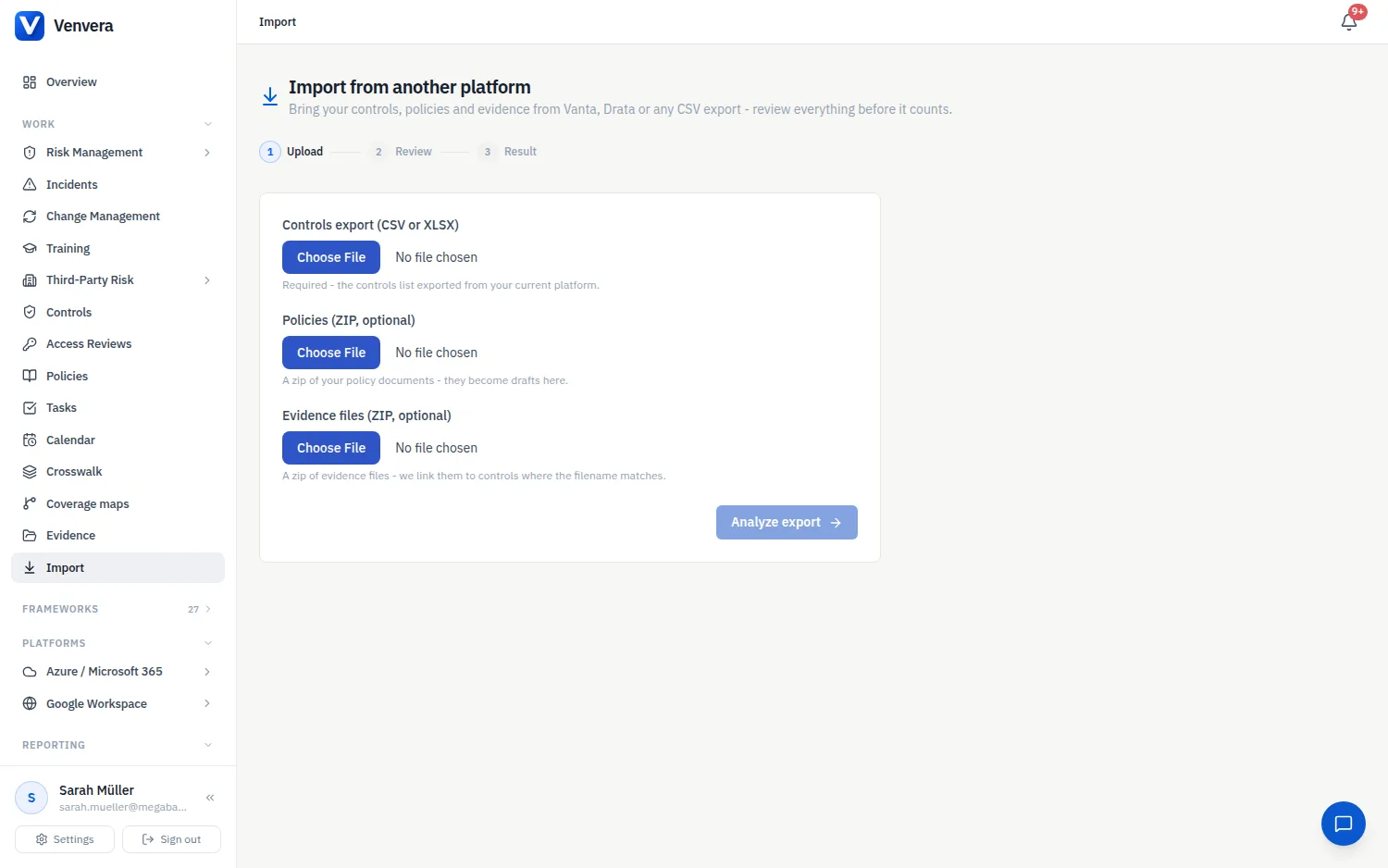
| File | What it is | Limits |
|---|---|---|
| Controls export (CSV or XLSX) - required | One row per control, with a header row. Only a control name column is needed; description, status and owner are read when present. | The first worksheet only, header in row 1, the first 1,000 rows. CSV must be comma-separated and saved as UTF-8. Old Excel files (.xls) cannot be read: save them as .xlsx. |
| Policies (ZIP, optional) | Your policy documents. Each one becomes a draft policy with the file attached. | The first 200 files in the ZIP, 25 MB per file. Put only policy documents in it: every accepted file becomes a policy. |
| Evidence files (ZIP, optional) | Evidence documents. A file is attached to a control when its name contains that control's reference. | The first 200 files in the ZIP, 25 MB per file. |
The three files travel in one upload of at most 25 MB in total. If your evidence is larger, import the controls first and add the evidence in further runs, or upload it on the controls afterwards. Inside the ZIPs, folders are ignored and these file types are accepted: PDF, Word (.doc, .docx), Excel (.xls, .xlsx), CSV, PNG, JPEG, text and XML. A PDF, an image or an Office file whose content does not match its extension is rejected.
Columns Venvera recognises
There is no template to fill in: the export is read as it comes. Venvera looks for these column headings, ignoring capital letters:
| Field | Headings recognised |
|---|---|
| Control name (required) | control name, control, name, title, control title, requirement |
| Description | description, control description, details, requirement description |
| Status | status, test status, state, result, compliance status, readiness |
| Owner | owner, control owner, assignee, assigned to, responsible |
If no control name column is found, the upload panel turns amber and asks you to type the exact headings from your file, then Retry with these columns.
The status cell decides how a row is treated:
| Read as | Words in the status cell |
|---|---|
| Passing | passing, pass, passed, ok, implemented, complete, completed, compliant, ready, done, active, effective, yes |
| Not passing | failing, fail, failed, not passing, needs attention, incomplete, not implemented, non-compliant, noncompliant, at risk, gap, no, in progress, draft, not started, deactivated, disabled |
| Unknown | Anything else, including an empty cell or a longer phrase such as "Passing (3/3)" |
How it works
Open Import in the sidebar, choose the controls export and, if you have them, the two ZIPs, then click Analyze export. Nothing in your compliance records changes at this point.
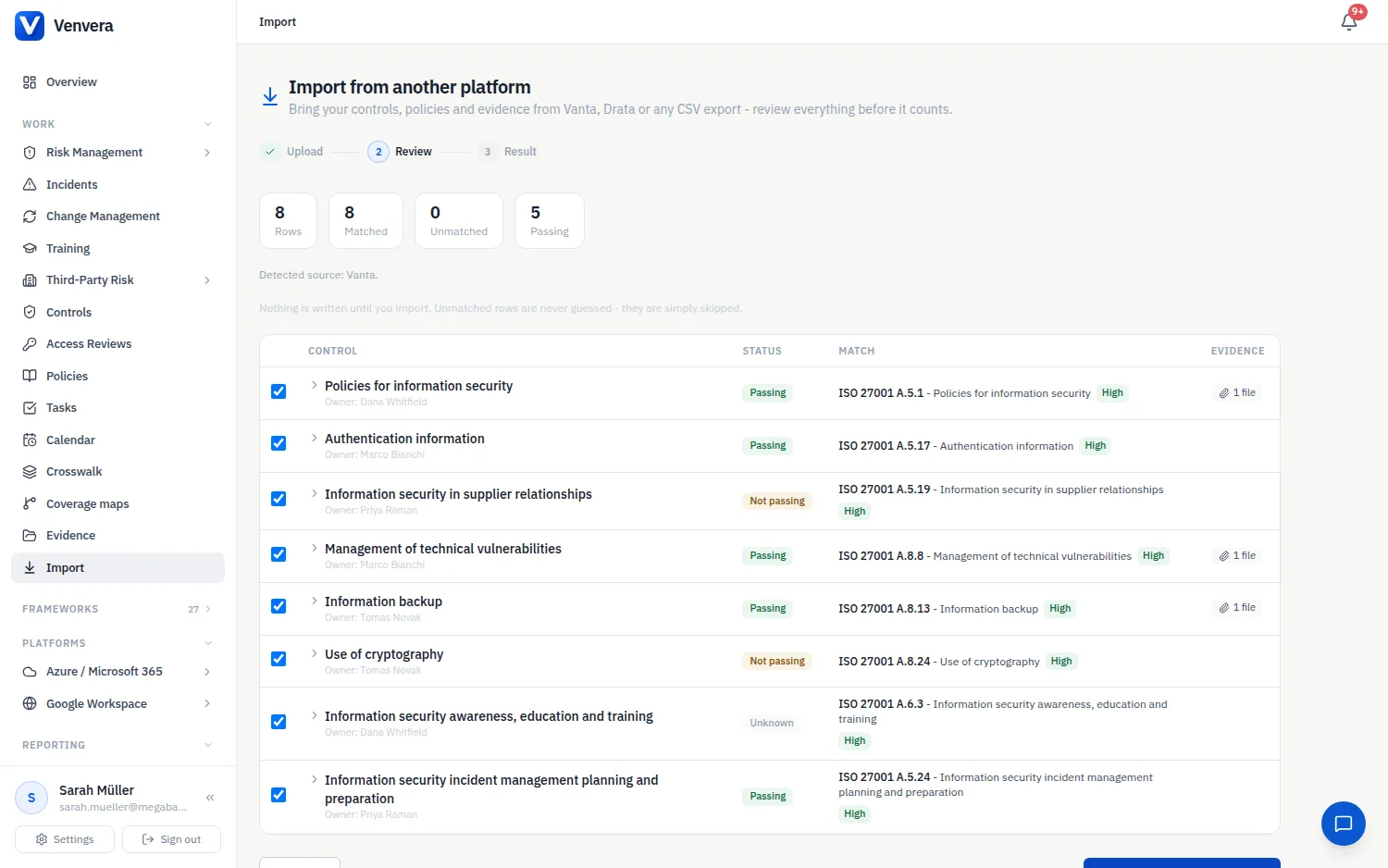
Every row is listed with its status, the Venvera control it was matched to and how sure the match is. Matched rows are ticked. Untick any row that should not count, then click the button that reads Import 42 approved rows, with your own number of ticked rows.
The import runs in the background and the page shows what was written. You can leave the page; the import still finishes.
How rows are matched
Each row is matched to at most one control, in one of your enabled frameworks. The label beside the match tells you how it was found:
| Label | Meaning |
|---|---|
| High | The control name in your file and the title of the Venvera control are the same, or one contains the other. Venvera titles shorter than eight characters are matched as Medium at most. |
| Medium | Every significant word of the Venvera control's title appears in the row's name and description. |
| AI | Your own AI suggested the match for a row the two rules above could not place. This runs only if your organisation has connected an AI under Settings, AI. It sees the names and the start of the descriptions of up to 40 unmatched rows, never your files, and every suggestion is checked against the real control list. |
Rows that match nothing show No match - will be skipped. Venvera never guesses: an unmatched row is left out, and you can record that control by hand afterwards. A short control name such as "Access" can match the first control whose title contains it, so read the High matches of very short names before you import.
Linking evidence files
An evidence file is attached to a row when its file name contains the reference of the Venvera control that row was matched to, for example A.5.15 access control policy.pdf for ISO 27001 control A.5.15. The reference has to stand on its own in the name: A.5.1 does not pick up a file named A.5.15. Rename your files this way before you zip them and the evidence lands on the right controls in one go.
- When several files name the same control, the first one is attached. Add the others on the control afterwards.
- Files that match no row are listed at the review step as not linked. They are not kept in your evidence library: upload each one on the control it belongs to.
- A file linked to a row that is Not passing, or to a row you untick, is not attached either. Upload it on the control once the control is in place.
What the import writes
| Row at the review step | Result |
|---|---|
| Ticked, Passing, no file | The control is marked implemented with a written statement as evidence, saying that it was imported, on which date, and the status the export reported. The platform is named when the file looks like a Vanta or Drata export. |
| Ticked, Passing or Unknown, with an evidence file | The control is marked implemented with the file as evidence. |
| Ticked, Not passing (with or without a file) | No evidence is added and the control is not marked implemented: a control your old platform reported as failing never becomes implemented through an import. A control that already has a status in Venvera keeps it; one with no record yet is created as not implemented. |
| Ticked, Unknown, no file | The same: no evidence is added, an existing status is kept, and a control with no record yet is created as not implemented. |
| Unticked or unmatched | Nothing is written. |
| Each file in the policies ZIP | A draft policy named after the file, with the file in its Documents panel. Policies are created when you import at least one control row. |
Controls marked implemented also raise the equivalent controls in your other enabled frameworks, exactly as they do when you add evidence by hand; see cross-framework propagation. The evidence gets Venvera's usual renewal date, counted from the day of the import.
The result page reports Controls closed (split into written statements and files), Crosswalk propagations, Policies created as drafts and Recorded as not implemented, followed by a count of the rows skipped (unapproved and unmatched). If anything failed, an errors (show) link lists each failed row or policy file with its reason.
What is not imported
- Control owners. The owner named in the file is written into the evidence note; assign owners in Venvera afterwards.
- Dates, tests, test results and monitoring history.
- The framework mapping of the other platform. Venvera uses its own crosswalk.
- Custom controls that match nothing in your enabled frameworks.
- Users, risks, vendors and tasks. See Importing your data for what else can be brought in from a file.
Good to know
- There is no undo. Review the ticked rows carefully. To reverse an import, remove the imported evidence and reset the control status by hand, and delete the draft policies.
- Running the same export twice adds a second set of evidence and a second set of draft policies. Import each file once.
- The matched control cannot be changed at the review step. If a match is wrong, untick the row and record that control by hand.
- For a policy set, Import policies does more than the policies ZIP here: it reads each document, gives it a proper title and category and maps it to controls. Use the ZIP when you only need the documents carried over as drafts.
- A finished import adds one summary entry with its counts to the audit trail, under the name of the person who ran it. Each evidence record, control change and draft policy it wrote is also logged as its own entry.