The policy library: templates whose sections declare the controls they cover, so a policy is coverage you can point an auditor at rather than paperwork. (40 seconds)
The Policy Management module in Venvera provides a centralised library for your organisation's compliance policies. You can auto-generate framework-specific policies, create custom policies with document uploads, and manage each policy through a formal lifecycle. This article covers the regulatory context, documents every feature, and explains the full policy lifecycle workflow.
Regulatory Context
Multiple regulatory frameworks require formal, documented policies:
| Framework | Requirement | Detail |
|---|---|---|
| DORA Art. 9(4) | ICT Security Policies | Financial entities must establish ICT security policies including procedures and protocols, approved by the management body, to ensure the security and functioning of all ICT systems and tools. |
| NIS2 Art. 21(2)(a) | Risk Analysis Policies | Essential and important entities must adopt policies on risk analysis and information system security as part of their cybersecurity risk-management measures. |
| ISO 27001 Clause 5.2 | ISMS Policy | Top management must establish an information security policy appropriate to the purpose of the organisation, providing a framework for setting objectives. |
| GDPR Art. 24 | Data Protection Policies | Controllers must implement appropriate technical and organisational measures, including data protection policies, to demonstrate GDPR compliance. |
Policy Dashboard
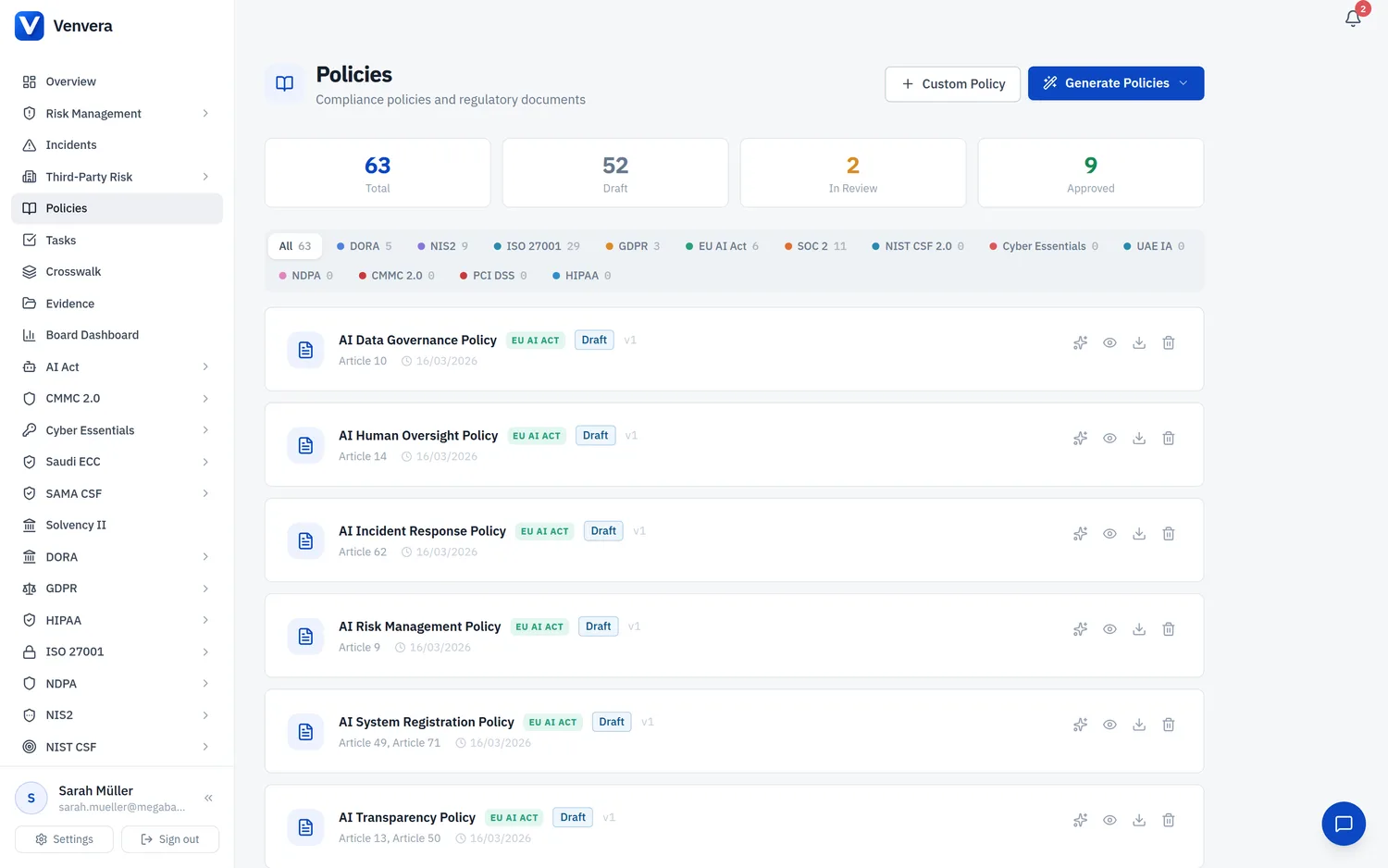
Navigate to Policies in the sidebar. The page shows a header with action buttons, summary stat cards, framework filter tabs, and the policy list.
Summary Stat Cards
| Card | Description |
|---|---|
| Total | All policies across all frameworks |
| Draft | Policies in draft status (not yet submitted for review) |
| In Review | Policies submitted for review and awaiting approval |
| Approved | Policies formally approved and in effect |
Framework Filter Tabs
A row of filter tabs at the top lets you filter policies by framework: All, DORA, NIS2, ISO 27001, GDPR, EU AI Act, SOC 2, NIST CSF, Cyber Essentials, UAE IA, NDPA, CMMC, PCI DSS, HIPAA. Each tab shows the count of policies in that framework. A coloured dot beside each framework name provides quick visual identification.
Auto-Generating Policies
Venvera can auto-generate a standard set of compliance policies for each supported framework. This saves significant effort compared to writing each policy from scratch.
Click the Generate Policies button in the page header. A dropdown menu appears listing all your enabled frameworks (DORA, NIS2, ISO 27001, GDPR, EU AI Act, SOC 2, NIST CSF, Cyber Essentials, UAE IA, NDPA, CMMC, PCI DSS, HIPAA).
Click the framework you want to generate policies for. The system creates all required policies for that framework. A progress indicator shows while generation is in progress.
A success message reports how many policies were created, how many already existed (skipped), and how many were skipped because they are covered by another framework (e.g., "3 covered by DORA"). Policies are created in Draft status so you can review and customise them before approval.
What Policies Are Generated
Each framework generates a tailored set of policies. Examples include:
- DORA: ICT Security Policy, ICT Risk Management Policy, Incident Response Policy, Business Continuity Policy, ICT Third-Party Risk Policy, ICT Change Management Policy, and more.
- NIS2: Risk Analysis and Information Security Policy, Incident Handling Policy, Supply Chain Security Policy, Cryptography Policy, and more.
- ISO 27001: ISMS Policy, Access Control Policy, Asset Management Policy, Information Classification Policy, and more.
- GDPR: Data Protection Policy, Privacy Notice, Data Breach Response Policy, Data Retention Policy, Data Subject Rights Policy, and more.
- PCI DSS: Information Security Policy, Access Control Policy, Network Security Policy, Data Protection Policy, Vulnerability Management Policy, Incident Response Policy, Physical Security Policy, Third-Party Risk Policy, and more.
- HIPAA: Security Policy, Access Control and Authentication Policy, Contingency and Disaster Recovery Policy, Physical Safeguards Policy, Audit and Monitoring Policy, Breach Notification Policy, Business Associate Management Policy, and more.
- SOC 2, NIST CSF, CMMC, Cyber Essentials, UAE IA, NDPA: Each generates a tailored set of 8-12 policies aligned with the framework's requirements.
Creating a Custom Policy
For policies not covered by the auto-generation templates, create a custom policy:
Click the Custom Policy button in the header. An inline form appears.
Type the policy title (e.g., "Data Classification Policy"). This field is required.
Click the upload area or drag and drop a file. Supported file types: PDF, DOC, DOCX, XLSX, XLS, CSV, TXT, PNG, JPEG. Maximum file size: 25 MB. The file preview shows the filename, size, and a type icon.
Click Create Policy. The policy is created in Draft status. If a file was attached, it is uploaded as the first document for this policy.
Policy Lifecycle
Every policy follows a four-stage lifecycle. Status transitions are performed via buttons that appear when you expand a policy card:
| Status | Badge | Available Actions | Who Can Perform |
|---|---|---|---|
| Draft | Grey | "Submit for Review" button | Any team member with policy access |
| In Review | Amber | "Approve" button and "Return to Draft" button | Reviewers and policy owners |
| Approved | Green | "Archive" button; approval date is displayed | Policy owners and administrators |
| Archived | Grey/muted | No further transitions; retained for audit history | Read-only for all users |
Document Management
Each policy can have multiple documents attached. Expand a policy card (click the eye/chevron icon) to see the Documents section:
- Upload: Click the Upload button to add a new document. Supported types: PDF, DOC, DOCX, XLSX, XLS, CSV, TXT, PNG, JPEG. Max size: 25 MB per file.
- Download: Click the download icon next to any document to retrieve it.
- Delete: Click the trash icon to remove a document (with confirmation).
Each document entry shows the filename, file size, file type icon (PDF, DOCX, XLSX, CSV, IMG, FILE), and the upload date. For auto-generated policies, a "Download .docx" button in the action bar downloads the generated policy content as a formatted Word document.
Supported File Types
| Type | Extensions | Icon |
|---|---|---|
| PDF Documents | ||
| Word Documents | .doc, .docx | DOCX |
| Spreadsheets | .xlsx, .xls | XLSX |
| CSV Files | .csv | CSV |
| Text Files | .txt | FILE |
| Images | .png, .jpg, .jpeg | IMG |
Editing Policy Content In-App
You do not have to edit policies offline. Click Edit policy on any policy to open a built-in Word-like editor with headings, lists, links, text alignment, colour, and tables. Content is saved as formatted rich text, and every save snapshots a new version so you retain the full edit history. Older policies authored in Markdown are converted to rich text automatically when opened.
AI Policy Review
Venvera can analyse any policy against your organisation's tracked framework controls using AI (Claude or ChatGPT). The review identifies missing controls, vague sections, and provides an overall coverage score. See the full AI Policy Review guide for detailed documentation.
Starting a Review
Click the sparkles icon (✨) on any policy row - this expands the policy and immediately starts the AI analysis. You can also expand a policy first, then click the purple "Review with AI" button in the expanded action bar.
Review Results
The AI review panel appears below the status buttons with a purple border, showing:
- Coverage percentage - colour-coded bar (green ≥80%, amber ≥50%, red <50%)
- Summary - plain-language assessment of the policy's compliance posture
- Missing Controls - controls that should be addressed but aren't, with expandable suggested language
- Controls Covered - green badges for controls the policy already addresses
- Suggested Improvements - existing sections that need stronger or more specific language
Implementing AI Suggestions as a New Draft
When the review identifies missing controls or improvements, a purple "Implement Suggestions in New Draft" button appears next to the summary. Clicking it:
- Sends the original policy and all review findings to the AI provider
- The AI produces a complete improved version - preserving the original structure while adding missing sections and strengthening weak ones
- The improved policy is saved as a new draft titled "[Original Title] (AI-Improved Draft)"
- A DOCX file automatically downloads for offline review
- The policy list refreshes to show the new draft
Depending on the policy, implementing suggestions either creates a new draft titled "[Original Title] (AI-Improved Draft)" and downloads a DOCX, or, when the policy has an uploaded Word document, edits that document in place without creating a separate draft. The policy list refreshes either way.
Mapped Controls
Each policy can be mapped to the specific framework controls it satisfies. Venvera matches controls automatically using AI plus keyword and crosswalk matching (keyword and crosswalk still run even if no AI provider is configured), and annotates each mapped control with your organisation's evidence and compliance status. Policy owners can re-run the matcher, and add, dismiss, or reassign individual control mappings. Manual overrides are preserved across re-runs.
Policy Card Details
Each policy in the list displays:
- Title - the policy name
- Framework badge - colour-coded label (DORA/NIS2/ISO 27001/GDPR)
- Status badge - Draft, In Review, Approved, or Archived
- Version number - shown as "v1", "v2", etc.
- Article references - relevant regulatory articles (up to 4 shown, with "+N more" for additional)
- Last updated date - when the policy was last modified
- Created by - the user who created the policy
The action icons on each policy row are (left to right): ✨ AI Review (sparkles - triggers AI analysis), 👁 Expand (shows details, documents, and status buttons), ⬇ Download (DOCX download, for generated policies), and 🗑 Delete. Expanding a policy reveals the full content preview (first 3000 characters in monospace font), document attachments, status transition buttons, and AI review results if a review has been run.
Best Practices
- Generate first, customise second: Use the auto-generate feature for each applicable framework, then review and tailor each policy to your organisation before approving.
- Upload supporting documents: Attach procedures, process diagrams, and evidence documents to the relevant policy for a complete audit package.
- Track versions: Each policy carries a version number that increments on save. Expand a policy to view its full version history, so you can see who changed what and when.
- Archive, do not delete: When a policy is superseded, use the Archive status instead of deleting it. This preserves the audit trail showing which policies were in effect at any given time.
- Approval dates matter: Regulators expect policies to be formally approved. The approval timestamp on each policy provides evidence of management oversight as required by DORA Art. 9(4) and NIS2 Art. 20.
Step-by-Step: Full Policy Lifecycle
Use "Generate Policies" for framework-standard policies (DORA, NIS2, ISO 27001, GDPR), or "Custom Policy" for organisation-specific documents. Generated policies arrive pre-filled with standard content; custom policies start as empty containers for your uploads.
Click the ✨ sparkles icon to run an AI policy review. The AI analyses the policy against your framework controls and identifies gaps. If improvements are needed, click "Implement Suggestions in New Draft" to have the AI generate an improved version automatically.
Expand each draft policy to review its content. For generated or AI-improved policies, download the .docx file, customise it to your organisation, and re-upload. Attach supporting documents (procedures, diagrams, evidence) as needed.
Click "Submit for Review" to move the policy to In Review status. This signals to reviewers and policy owners that the policy is ready for formal assessment.
Reviewers can either "Approve" the policy (moving it to Approved with an automatic approval timestamp) or "Return to Draft" for further revisions.
When a policy is replaced by a newer version or is no longer applicable, click "Archive" to move it to Archived status. The policy remains visible for audit history.