
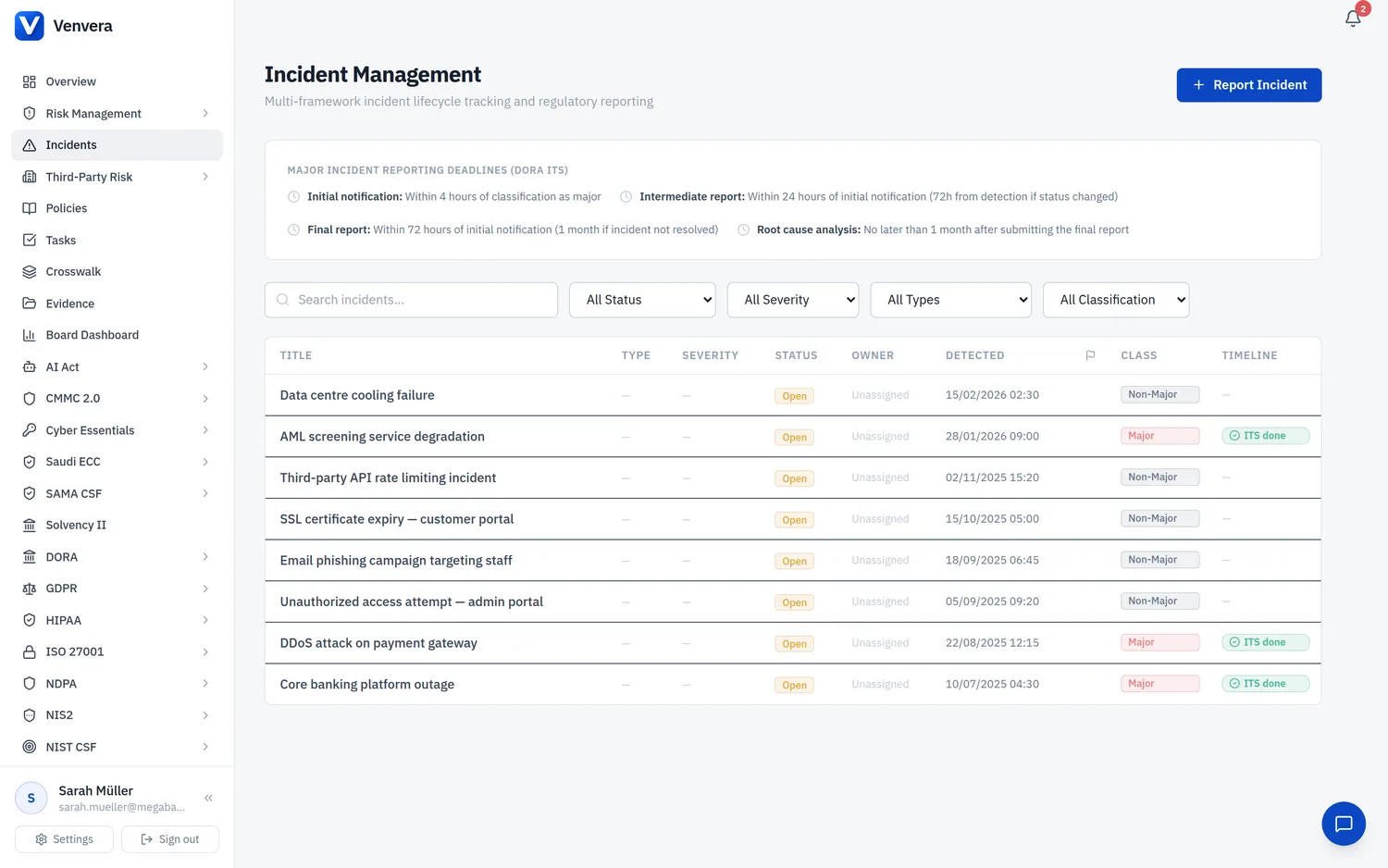
One incident, several regulators: each regime's clock computed from its own trigger, from DORA's report cadence to GDPR's 72 hours and the AI Act's Article 73. (51 seconds)
The ICT Incident Management module provides a complete workflow for detecting, classifying, reporting, and resolving ICT-related incidents in compliance with DORA ITS reporting requirements and NIS2 Article 23 notification obligations. It automatically calculates regulatory deadlines, tracks reporting status, and generates downloadable reports for each mandatory reporting stage.
Incident List Page
The incident list page displays all recorded incidents with powerful filtering and at-a-glance status indicators.
Filters
| Filter | Options | Description |
|---|---|---|
| Status | All, Open, Investigating, Contained, Resolved, Closed, Reopened | Filter by current incident lifecycle status. Incidents move through a six-stage lifecycle: Open, Investigating, Contained, Resolved, Closed, and Reopened. The status is set from a dropdown on the incident detail page and drives the coloured status badge in the list. |
| Type | All, Major, Non-Major | Filter by DORA classification. Major incidents trigger ITS reporting obligations with strict deadlines. Non-Major incidents are tracked internally but do not require regulatory notification. |
| Search | Free text | Free-text search across incident titles. |
| Severity | Critical, High, Medium, Low | Filter by internal severity, which is separate from the DORA Major / Non-Major classification. |
| Incident Type | Cybersecurity, data breach, and others | Filter by the incident type recorded on the incident. |
ITS Timeline Legend
At the top of the incident list, a legend explains the four mandatory reporting deadlines that apply to Major incidents under DORA ITS:
| Deadline | Timeframe | Report Type |
|---|---|---|
| 4h | 4 hours from detection | Initial Notification - Notify the competent authority that a major ICT-related incident has occurred. |
| 24h | 24 hours from detection | Intermediate Report - Provide updated information on the incident scope, impact, and initial response actions. |
| 72h | 72 hours from detection | Final Report - Deliver a comprehensive account of the incident including full impact assessment and recovery status. |
| 1mo | 1 month from detection | Root Cause Analysis - Submit the completed root cause analysis and long-term remediation plan. |
Table Columns
| Column | Description |
|---|---|
| Title | The descriptive title of the incident. Click to open the incident detail page. |
| Classification | Displays a badge indicating Major (red) or Non-Major (gray). Major incidents have regulatory reporting obligations. |
| Status | Shows a coloured badge for the current lifecycle state: Open, Investigating, Contained, Resolved, Closed, or Reopened. |
| Detection Time | The date and time the incident was first detected, displayed in your configured date format. |
| Timeline Status | For Major incidents, colored indicators show the reporting compliance state: • Red (Overdue) - One or more reporting deadlines have passed without the report being marked as sent. • Amber (Due in Xh) - A reporting deadline is approaching within the indicated number of hours. • Green (All reports sent) - All required ITS reports have been submitted on time. |
Creating a New Incident
Click the New Incident button to open the incident creation form. The form is divided into several sections that dynamically reveal additional fields based on your selections.
Basic Information
Provide a clear, descriptive title that summarizes the incident. This title appears in the incident list and all generated reports. Required
Write a detailed description of the incident including what happened, which systems were affected, and any immediate observations. This description feeds into generated regulatory reports. Required
Select the exact date and time the incident was first detected using the datetime picker. This timestamp is the anchor for all regulatory deadline calculations. Required
Choose Non-Major or Major from the dropdown. Major classification triggers DORA ITS reporting obligations with calculated deadlines. The Impact Assessment Criteria section (below) can auto-suggest this classification. Required
Additional Incident Details
Beyond the basics, the create form captures a fuller operational picture:
| Field | Description |
|---|---|
| Incident Owner | The user accountable for managing the incident to resolution. |
| Occurrence Date and Time | When the incident actually happened, as distinct from when it was detected. |
| Discovery Method | How the incident came to light (monitoring alert, user report, third-party, audit, and others). |
| Incident Type | Cybersecurity, IT system failure, data breach, business process failure, third-party disruption, physical security, fraud, or other. |
| Severity | Critical, High, Medium, or Low - an internal severity separate from the DORA Major / Non-Major classification. |
| Affected Business Processes and Affected Systems / Assets | Tag inputs recording the scope of impact. |
| Reportable | Flag marking the incident as externally reportable. |
| Related Frameworks | Toggle which frameworks the incident touches (DORA, NIS2, GDPR, ISO 27001, SOC 2, NIST CSF, AI Act) so it appears in the right regulatory context. |
NIS2 Significant Incident
Check the NIS2 Significant checkbox if the incident qualifies as significant under the NIS2 Directive. When enabled, additional NIS2-specific fields appear:
| Field | Type | Description |
|---|---|---|
| Incident Category | Select dropdown | Classify the type of incident. Options: Ransomware, Data Breach, DDoS, Phishing, Malware, Supply Chain, Insider Threat, Unauthorized Access, System Failure, Vulnerability Exploit, Other. |
| Cross-border Impact | Checkbox | Check if the incident affects services or data in other EU Member States. When checked, the Affected EU Member States field appears. |
| Affected EU Member States | Tag input | Enter comma-separated ISO country codes (e.g., DE, FR, NL). Press Enter or click away (blur) to add each code as a tag. Appears only when Cross-border Impact is checked. |
| Indicators of Compromise | Text input with add button | Enter an IoC value (IP address, hash, domain, URL, etc.) and click the + button to add it to the list. Each IoC appears as a removable item with an X button. Use this to document forensic indicators for the NIS2 report. |
Impact Assessment Criteria
This section presents a list of checkboxes corresponding to the DORA ITS impact assessment criteria. Each checkbox describes a specific major-incident threshold condition.
A running count of triggered criteria is displayed. When 2 or more criteria are met, the system will display a suggestion to classify the incident as Major. This follows the DORA ITS methodology where the combination of multiple impact dimensions indicates a major incident.
DORA ITS Reporting Deadlines
This section appears automatically when the incident is classified as Major and a Detection Time has been set. It displays four auto-calculated deadlines:
| Report | Deadline Calculation | Description |
|---|---|---|
| Initial Notification | Detection Time + 4 hours | The competent authority must be notified within 4 hours of detecting a major incident. |
| Intermediate Report | Detection Time + 24 hours | An updated report with scope, impact assessment, and response actions is due within 24 hours. |
| Final Report | Detection Time + 72 hours | A comprehensive final report covering full impact, recovery, and lessons learned is due within 72 hours. |
| Root Cause Analysis | Detection Time + 1 month | A detailed root cause analysis and long-term remediation plan must be submitted within one month. |
NIS2 Art. 23 Notification Deadlines
This section appears when the NIS2 Significant checkbox is enabled and a Detection Time is set. It shows the NIS2 Directive Article 23 notification deadlines:
| Notification | Deadline | Description |
|---|---|---|
| Early Warning | Detection Time + 24 hours | An early warning must be submitted to the CSIRT or competent authority within 24 hours of becoming aware of the significant incident. |
| Incident Notification | Detection Time + 72 hours | A detailed notification updating the early warning with an initial assessment of severity, impact, and indicators of compromise. |
| Final Report | Detection Time + 30 days | A final report including a detailed description of the incident, root cause analysis, mitigation measures applied, and cross-border impact where applicable. |
Incident Detail Page
Click any incident in the list to open its full detail page. The detail page is the central hub for managing the incident lifecycle, tracking reporting compliance, and documenting resolution.
Header Section
The header displays the incident title along with key badges:
- Classification badge - Major (red) or Non-Major (gray)
- NIS2 badge - Displayed when the incident is marked as NIS2 Significant
- Status badge - the current lifecycle state (Open, Investigating, Contained, Resolved, Closed, or Reopened)
- Detection timestamp - When the incident was first detected
- Resolved timestamp - When the incident was resolved (only shown for resolved incidents)
Classification Engine
Each incident detail page runs an automatic classification engine that assesses the incident against DORA, NIS2, GDPR, and the EU AI Act simultaneously. For each framework it shows whether the incident is reportable, a confidence level, the criteria that matched, the applicable deadlines, and suggested next actions. The same engine provides live suggestions as you fill in the create form, so the recommended classification updates as you enter impact details.
Download Report
For Major incidents, a Download Report dropdown button is available with four options corresponding to each ITS reporting stage:
- Initial Notification (4h) - Downloads the initial notification report
- Intermediate Report (24h) - Downloads the intermediate report
- Final Report (72h) - Downloads the final report
- Root Cause Analysis (1mo) - Downloads the root cause analysis report
Export to Word
Alongside the four ITS stage reports, an Export to Word button generates a single comprehensive authority report as a Word document, consolidating all captured incident information into one file suitable for submission or internal records.
ITS Reporting Timeline
For Major incidents, a table displays the four ITS reporting steps with their compliance status:
| Column | Description |
|---|---|
| Step | The name of the reporting stage (Initial Notification, Intermediate Report, Final Report, Root Cause Analysis). |
| Status Icon | A color-coded icon indicating the current state: • Green checkmark - Report has been sent on time. • Red exclamation - Deadline has passed and the report has not been sent (overdue). • Clock icon - Deadline is in the future and the report is pending. |
| Due Date/Time | The calculated deadline for this reporting stage. |
| Action | If the report has not been sent, a "Mark as Sent" button is displayed. Clicking it records the current timestamp as the sent time. If already sent, the sent timestamp is displayed instead. |
NIS2 Art. 23 Timeline
For NIS2 Significant incidents, a similar timeline table tracks the three NIS2 notification deadlines (Early Warning, Incident Notification, Final Report) with the same status icons and "Mark as Sent" functionality as the ITS timeline.
NIS2 Details Section
When an incident is marked as NIS2 Significant, a dedicated section displays:
- Category - The selected incident category (e.g., Ransomware, Data Breach)
- Cross-border Impact - Displays "Yes" or "No". When Yes, affected EU Member State codes are shown as individual badges (e.g., DE, FR, NL)
- Indicators of Compromise - Each IoC is displayed in a monospace-formatted block for easy copying and reference
Resolution Section
The resolution section is used to close an incident once it has been fully addressed:
Enter a detailed description of the root cause in the Root Cause textarea. Explain the underlying technical or procedural failure that led to the incident.
In the Remediation Actions textarea, describe all corrective actions taken or planned. Include both immediate fixes and long-term improvements.
Click the Resolve button to change the incident status from Open to Resolved. The current timestamp is recorded as the resolution time. This action can be performed at any time but is recommended only after all ITS/NIS2 reports have been sent.
Attachments
Attach evidence files directly to an incident - upload, download, and delete documents such as forensic exports, screenshots, and correspondence. The section header shows the current attachment count.
Notification Log
Record every notification you send about the incident (to a regulator, a customer, or internally). Each log entry captures the recipient, method, reporting stage, and notes, giving you an auditable record of who was told what and when.
Response Metrics
Venvera computes response timings from the timestamps you record - Time to Detect, Time to Respond, Time to Contain, and Time to Resolve - so you can evidence the speed of your incident handling.
Impact, Scope and Technical Details
The detail page also captures the full impact and forensic picture: operational and business impact narratives, direct and indirect financial impact (EUR), data subjects and data types affected, attack vector, affected infrastructure, indicators of compromise, response timestamps (response started, contained at), actions taken, and flags for recurring or linked incidents.