
If your key risk indicators already live in Excel, with their thresholds in one workbook and the monthly values in another, Import Excel loads both in one step: the indicators, their bands and their history. It was built for a KRI register kept as two workbooks, so the layout of each file is fixed and is described column by column below.
What you need
- The Professional or Enterprise plan.
- The Manage permission for GRC. Administrators have it; Editors need it ticked in their permissions under Settings.
- Two Excel workbooks in .xlsx format: one with the thresholds, one with the values. Both are required, and together they may not exceed 25 MB. Old .xls files and CSV files are not read.
- Every legal entity named in the values workbook already created in Venvera, spelled exactly as in the file. Legal entities are your organisation's branches; add them under DORA, Register of Information, Branches, where each one needs a name and a country. That page is available when the DORA framework is enabled and needs the Edit permission for Register of Information. If a legal entity is missing, the import stops, names it and writes nothing.
The thresholds workbook
Only the first worksheet is read. Row 1 is a title row and row 2 holds the headings; both are skipped, so the first indicator goes on row 3. The headings themselves are not checked: the columns are read by position, so keep them in this order.
| Column | Content | Notes |
|---|---|---|
| A | Number | Ignored. |
| B | KRI name | Required. Must be exactly the name used in the values workbook, capitals included. |
| C | Direction | Any text containing the word "lower" means lower is better. Anything else, including an empty cell, means higher is better. |
| D | Worst band | Between two and four of these cells must be filled. Leave a cell empty if the indicator has fewer than four bands. |
| E | Next band | |
| F | Next band | |
| G | Best band | |
| H | Number of bands | Ignored. |
Each band cell is plain text in the form Label: from - to, for example Red: 4 - 5. The label is your own wording and becomes the band's name in Venvera. Put a < before the upper number when the band stops just short of it: Yellow: 3 - < 4 covers 3 up to, but not including, 4.
- Both numbers are required; open-ended bands such as "> 5" are not supported.
- Write plain numbers with a decimal point: no % sign, no units, no thousands separator, no decimal comma.
- Type the band as text. A cell that holds a formula or mixed formatting is not read.
- A row with fewer than two or more than four readable bands is ignored.
The values workbook
One row per indicator per reporting period: January and February of the same KRI are two rows, not two columns. Row 1 holds the headings and is skipped; data starts on row 2. Venvera reads the worksheet whose name you type in Worksheet that holds the values (the field is pre-filled with "Clean"). If no worksheet has that name, the first one is read, so check the Values sheet line in the result.
| Column | Content | Notes |
|---|---|---|
| A | Legal entity | Required. Must already exist in Venvera under exactly this name. |
| B | Department | Saved on a new KRI. |
| C | ExCo reporting | Saved on a new KRI. |
| D | KRI type | Saved on a new KRI. |
| E | KRI name | Required. |
| F | KRI owner | Not imported. Set the owner on the KRI afterwards. |
| G | Value | A number. Without one, no value is saved for the row, but the KRI named on it is still created. |
| H | Status | Free text, saved as written, for example "Green". Give it the same wording as one of the KRI's band labels and the value takes that band's colour. |
| I | Reporting period | A date cell, or text in the form 2026-01-31. If the period cannot be read as a date, no value is saved for the row. |
| J | Owner comments | Saved with the value. |
| K, L | Linked risk, notes | Not imported. |
Type percentages as plain numbers, for example 99.5 in a cell without a percentage format, and use the same scale in the bands.
Running the import
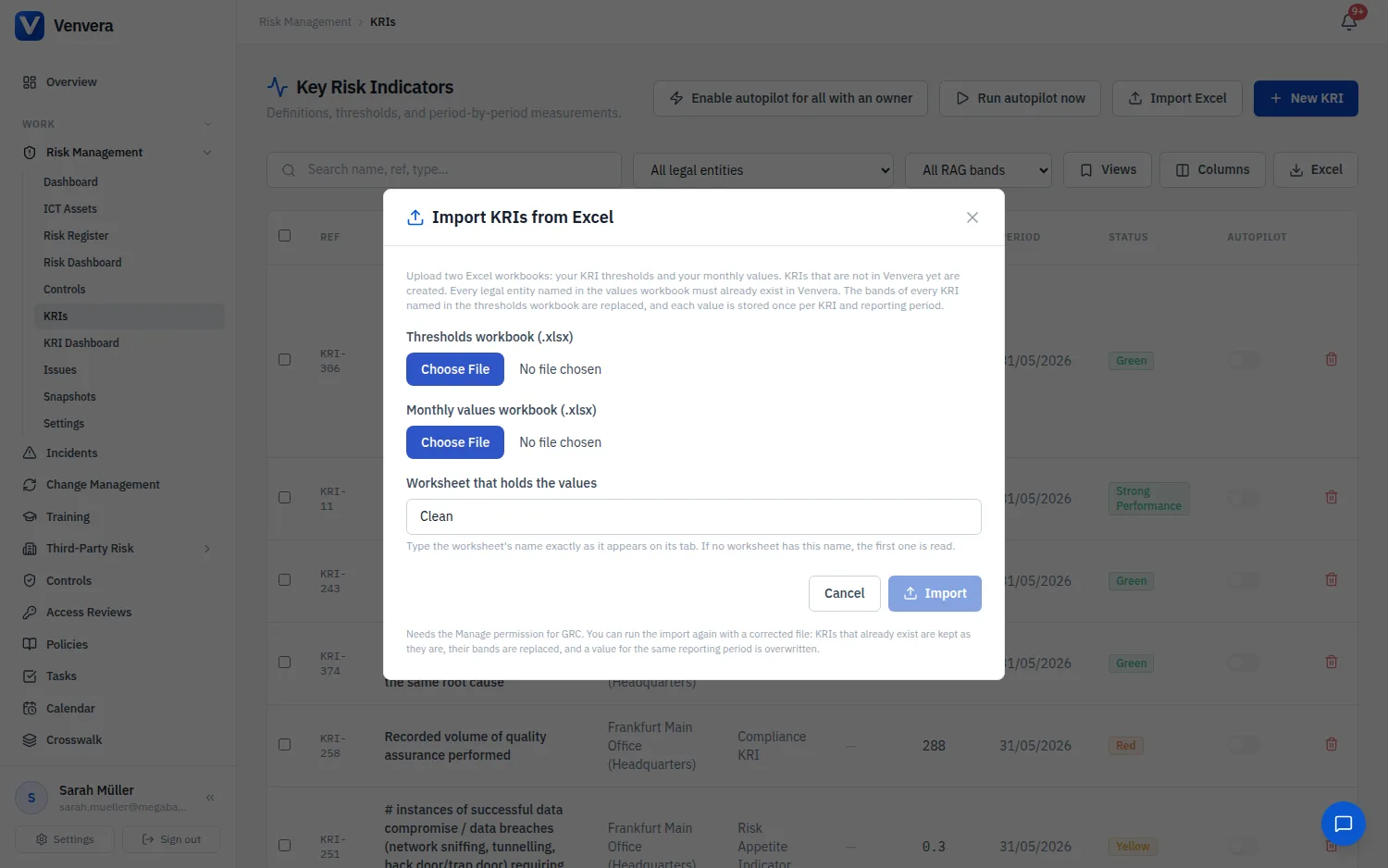
Go to Risk Management, KRIs and click Import Excel.
Pick the thresholds workbook and the monthly values workbook, and type the name of the values worksheet if it is not "Clean".
Click Import. There is no preview: the workbooks are read and saved in one step. Either everything is saved or, if anything fails, nothing is.
The dialog lists what was read and written. If it says that some threshold rows had no matching KRI in the values file, click show to see the names: the usual cause is a spelling difference between the two workbooks.
What the import does
| Record | What happens |
|---|---|
| KRIs | A KRI is identified by its legal entity and its name together. One that is not in Venvera yet is created with the next free reference (KRI-1, KRI-2 and so on), monthly frequency, and the type, department and ExCo reporting from its first row. One that already exists is left exactly as it is. |
| Bands | For every KRI in the values workbook whose name also appears in the thresholds workbook, the existing bands are removed and replaced by the ones in the file, including bands you edited by hand. A KRI named only in the thresholds workbook is not changed; the result lists it as a threshold row with no matching KRI. |
| Values | One value is kept per KRI and reporting period. If the file repeats a period for the same KRI, the first row is used. A value already in Venvera for that period is overwritten. |
The status of a value is copied from the file, not worked out from the number. New KRIs arrive without an owner, a description or linked risks, so open each one to complete it; a KRI needs an owner before KRI Autopilot can ask for its values.
Running it again
You can import a corrected file as often as you need: existing KRIs are kept, their bands are replaced and values for the same period are overwritten. A value that already had a band colour keeps that colour even when the corrected file gives it a different status; delete the value and import again to recolour it. There is no undo. To remove a KRI that should not have been imported, delete it from the list, which also removes its bands and its history.