Venvera lets you tailor how information is presented: the date and time formats used across every screen, the interface text size, and a light or dark appearance. These options live on the Settings page (click Settings at the bottom of the sidebar).
Date Format and Time Format are organisation-wide: an administrator sets them once and they apply to every user in the tenant. Text size and theme are personal: each user chooses their own and the choice is remembered on that browser.
Other things on the Settings page
Beyond display options, the Settings page also hosts:
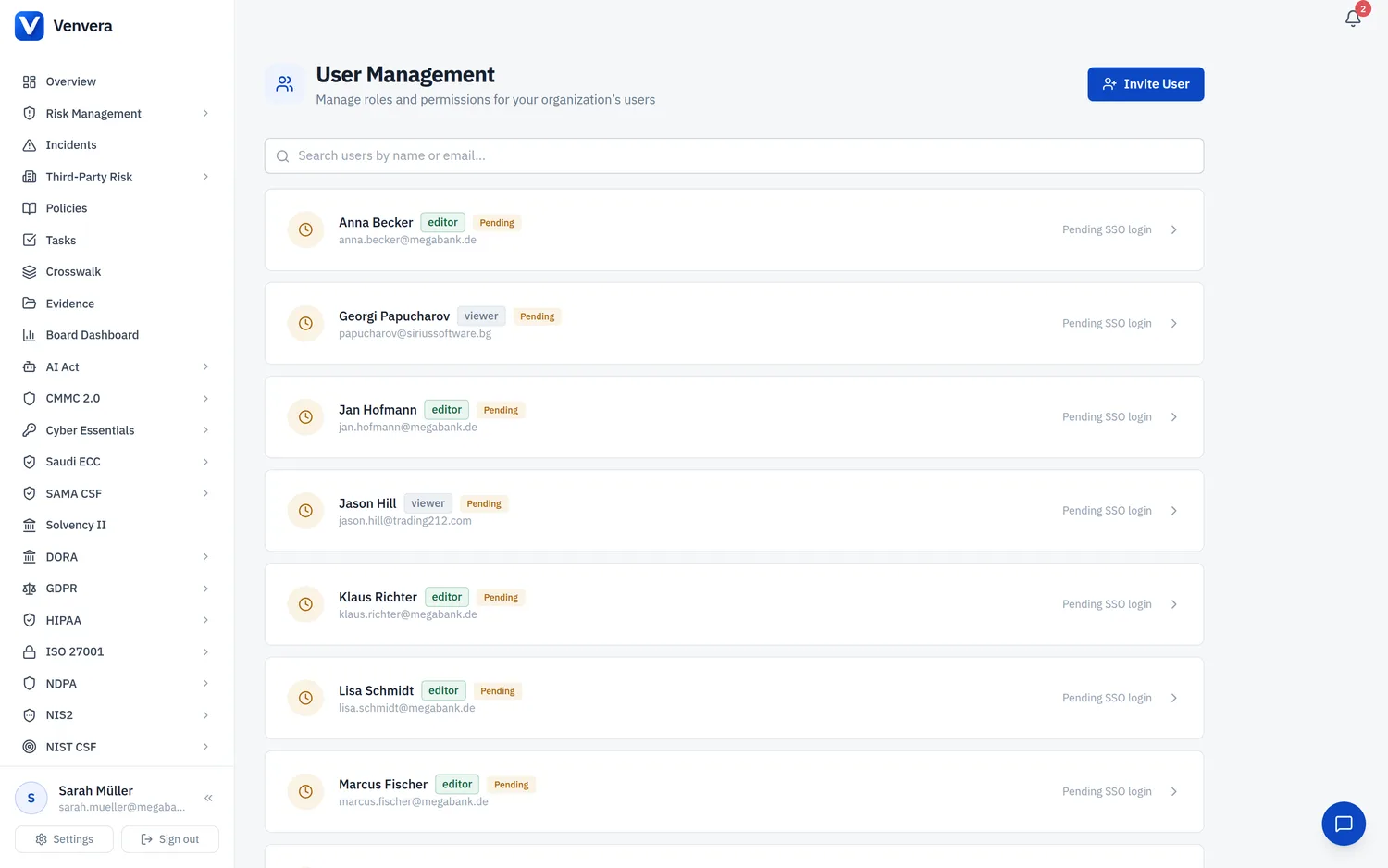
- User Management and Groups - open the team and group admin pages (Admin only).
- Company Profile - your organisation's legal and contact details.
- Auditor Access - invite external auditors to time-limited, read-only access by magic link plus a verification code (requires the
settings.managepermission). - AI Assistant - configure your AI provider (Claude, ChatGPT or DeepSeek) and API key for the Virtual CISO and AI evidence features. See AI Evidence Assistant.
- Notification Webhooks - send compliance events to Slack, Teams or a custom endpoint (requires integrations edit permission).
Date Format
Controls how calendar dates are written throughout the platform: in tables, detail pages, reports, and regulatory registers. Changing it updates every date display for all users immediately.
| Option | Example |
|---|---|
| DD/MM/YYYY | 16/06/2026 |
| MM/DD/YYYY | 06/16/2026 |
| YYYY-MM-DD | 2026-06-16 |
Editing the date format requires the Admin role or the settings.manage permission.
Time Format
Controls how times of day are written wherever a time appears: incident detection and containment times, audit timestamps, KRI measurement dates, and so on. It also drives the clock shown in the date-and-time pickers you use when entering data.
| Option | Example |
|---|---|
| 24-hour | 14:30 |
| 12-hour | 2:30 PM |
New organisations default to 24-hour. As with the date format, the time format is organisation-wide and requires the settings.manage permission to change.
Text size
Adjusts the interface text size for both the sidebar and the main content area, improving readability on high-resolution or smaller screens. This is a personal preference, saved for your browser, and does not affect other users.
| Option | Effect |
|---|---|
| Small | Compact, fits more on screen |
| Default | Standard size |
| Large | Larger, easier to read |
| Extra large | Largest |
A live "Aa" preview on the Settings card shows the effect before you choose.
Appearance (Light / Dark)
Choose between a Light and a Dark theme. The theme is personal and remembered for your browser. Switch it from the Settings page at any time, or use the theme toggle in the sidebar footer. All buttons, charts, and status colours are tuned for legibility in both themes. See Navigating the Interface for the sidebar toggle.