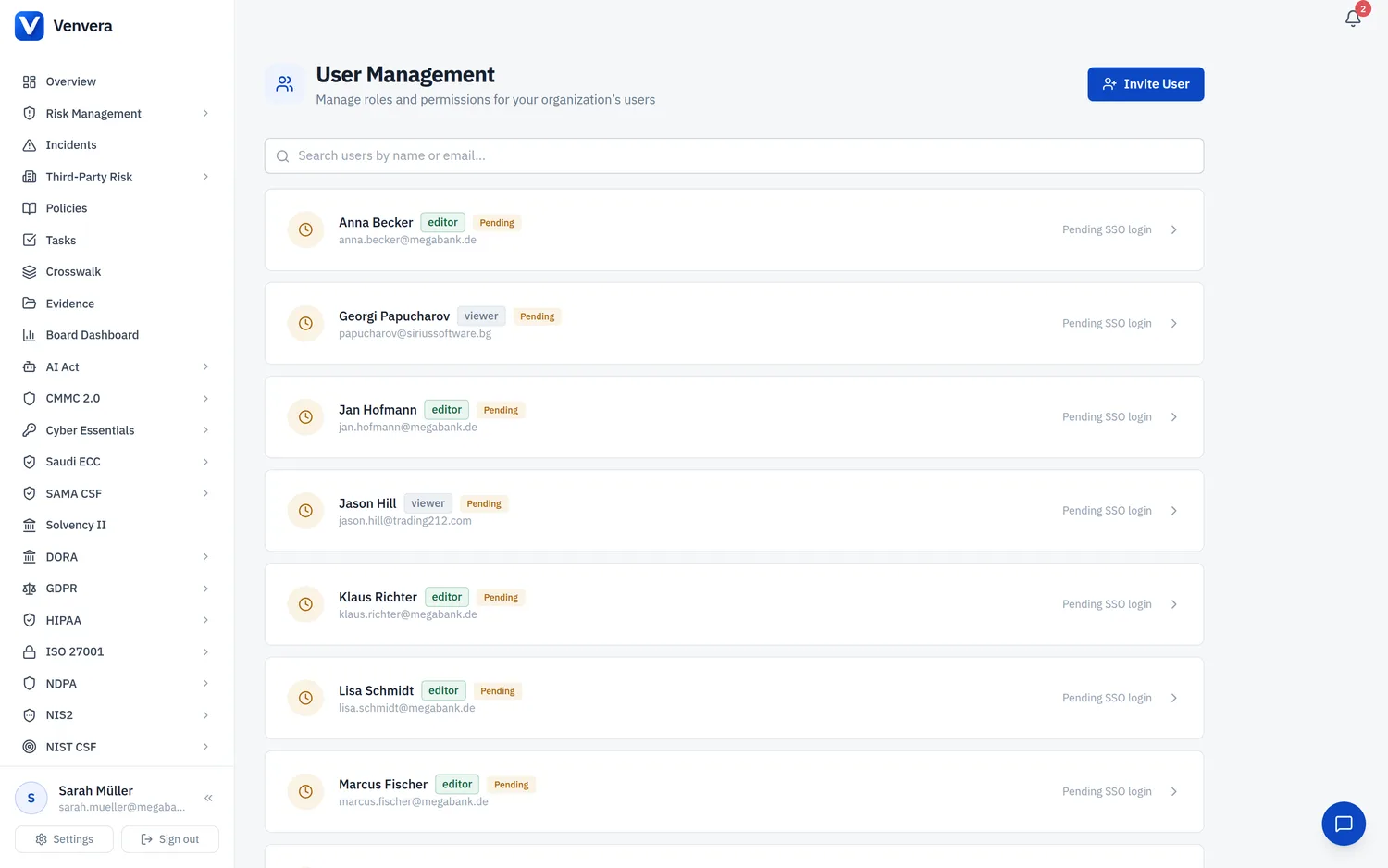
The User Management page allows organization administrators to invite users, assign roles, manage permissions, and control access to the Venvera platform. User management follows a role-based access control (RBAC) model where each user is assigned a role that determines their baseline permissions, with optional fine-grained permission group adjustments available on a per-user basis.
The User Management page is accessible only to users with the Admin role. Editors and Viewers cannot access user management functions. Platform administrators have an enhanced view that spans all tenant organizations.
Roles
Venvera provides three predefined roles that establish baseline permission levels for users. Each user must be assigned exactly one role.
| Role | Access Level | Description |
|---|---|---|
| Admin | Full access | Unrestricted access to all modules and settings. Can manage users, configure organization settings, generate reports, and access the audit trail. The only role that can access User Management. At least one Admin must exist per organization. |
| Editor | All modules, no user management | Full CRUD access to all compliance modules (RoI, Risk Management, Gap Assessment, Incidents, TPRM, Policies, Resilience Testing, Regulatory Updates). Can generate reports and view the audit trail. Cannot access User Management or organization settings. Ideal for compliance analysts and operational team members. |
| Viewer | Read-only | Read-only access across all modules. Can view records, dashboards, reports, and the audit trail but cannot create, edit, or delete records. Cannot access User Management or settings. Suitable for board members, auditors, or department heads who need visibility without edit access. |
User List
The User Management page displays a table of all users in your organization with the following columns:
| Column | Description |
|---|---|
| Name | The user's full name as provided during invitation or retrieved from their SSO profile upon first login. |
| The user's email address. This is the identifier used for SSO authentication via Azure AD (Microsoft Entra ID). | |
| Role | The assigned role (Admin, Editor, or Viewer) displayed as a badge. |
| Status | Active (green) - completed SSO login; Pending (yellow) - invited, awaiting first login; Disabled (grey) - deactivated. |
| Last Login | Date and time of the most recent authentication, in the organization's configured date format. |
Inviting Users
New users are added through an invitation flow. Venvera uses Azure AD (Microsoft Entra ID) SSO exclusively - users authenticate with their existing organizational credentials.
Click the Invite User button at the top of the User Management page. A form dialog appears with fields for the new user's details.
Enter the user's email address. This must be associated with an Azure AD account in your SSO configuration. The email serves as the unique user identifier.
Choose the appropriate role: Admin, Editor, or Viewer. Apply the principle of least privilege. You can always change the role later.
Click Invite to create the user account. The user appears in the user list with a Pending status. The invitation is recorded in the audit trail.
The invited user navigates to your organization's Venvera URL and signs in using their Azure AD credentials. Upon first successful SSO login, their status automatically changes from Pending to Active, and their display name is populated from their Azure AD profile.
You can invite multiple users in succession by repeating the invite process. Each invitation is independent, and users can activate their accounts at any time by signing in via SSO. There is no expiration on pending invitations.
User Detail and Editing
Clicking on a user in the list opens their detail view, where administrators can modify the user's role, status, and permission groups.
Role Selector
Change the user's assigned role using the dropdown. The new baseline permissions take effect immediately.
Status Toggle
The status toggle allows you to switch a user between Active and Disabled states:
- Active: The user can authenticate and access the platform according to their role and permissions.
- Disabled: Access is immediately revoked. The user cannot log in. Their data and audit trail entries are preserved. Re-enable at any time by toggling back to Active.
Disabling the last Admin user is not permitted. The platform requires at least one active Admin at all times. If you need to transfer admin responsibilities, first assign the Admin role to another user before disabling the current admin account.
Permission Groups
Administrators can fine-tune access using permission groups. Each group corresponds to a module and can be individually toggled per user, allowing granular control beyond the baseline role.
| Permission Group | Covers |
|---|---|
| Risk Management | Risk assessments, risk register, treatment plans |
| Incidents | Incident register, classification, authority reporting |
| TPRM | Provider register, contracts, risk assessments, exit plans |
| Policies | Policy register, versioning, review and approval |
| Gap Assessment | Framework assessments, compliance status, remediation |
| Resilience Testing | Test planning, execution, findings, TLPT |
| Regulatory Updates | Update tracker, impact assessments, acknowledgments |
| Audit Trail | Audit viewer, search, export |
| Reports | Board report generation and download |
| Settings | Company Profile, date format, org settings |
Additionally, framework-specific permission groups may be available depending on which compliance frameworks are enabled for your organization. These groups control access to framework-specific features and data that go beyond the base module permissions listed above.
Platform Administrator View
Platform administrators have an enhanced view spanning all tenant organizations:
Platform admins first see a tenant selector grid with cards for each organization showing name, slug, tier, user count, and status. Click a card to manage that tenant's users.
The standard User Management interface appears scoped to the selected organization. All tenant Admin actions are available. Breadcrumb navigation returns to the grid.
Navigate back to the grid to select a different organization. No separate accounts needed for cross-tenant management.
Organization-Wide Settings
These settings affect all users in the organization:
Date Format
The Date Format setting controls how dates are displayed throughout the entire platform for all users in your organization. This is an organization-wide setting, not a per-user preference.
| Format | Example | Common Usage |
|---|---|---|
| DD/MM/YYYY | 22/02/2026 | Most European countries (UK, Germany, France, Netherlands, etc.) |
| MM/DD/YYYY | 02/22/2026 | United States format |
| YYYY-MM-DD | 2026-02-22 | ISO 8601 international standard, commonly used in technical and regulatory contexts |
Changes apply immediately to all date displays (dashboards, tables, detail views, audit trail, date pickers). Downloaded reports use their own formatting.
Theme
The Theme setting is a per-user preference (unlike date format, which is organization-wide). Each user can independently choose between:
| Theme | Description |
|---|---|
| Light | Default light scheme with white background and dark text. Optimal for well-lit environments. |
| Dark | Dark background with light text. Reduces eye strain in low-light environments. All UI elements are adapted for readability. |
The preference persists across sessions and devices. Users toggle their theme from their profile menu without needing Admin access.
When onboarding new team members, consider creating a standard operating procedure that includes: (1) sending the invitation, (2) notifying the user to sign in via SSO, (3) reviewing and adjusting their permission groups after activation, and (4) pointing them to the help centre for self-service guidance.
External auditor access
You do not need to create an Admin/Editor/Viewer account for an outside auditor. From Settings → Auditor Access (requires the settings.manage permission), click Invite Auditor to grant time-limited, read-only access. The auditor receives a magic link by email and enters a verification code that you share with them separately. Their access expires automatically, and everything they view is scoped read-only to your organisation.
Best Practices
- Least Privilege: Assign the minimum role needed. Use Viewer for read-only stakeholders, Editor for active compliance work, Admin only for user and settings management.
- Regular Access Reviews: Periodically review user accounts. Disable inactive users or those who have left the organization.
- Separation of Duties: Separate Admin duties from day-to-day compliance work where possible.
- Audit Monitoring: Use the Audit Trail to monitor role changes, invitations, and status changes for accountability.
Venvera uses Azure AD (Microsoft Entra ID) multi-tenant SSO exclusively. There are no platform-managed passwords. Password policies, MFA, and conditional access are managed in your Azure AD tenant. Ensure MFA is configured to protect compliance data access.
Frequently Asked Questions
What happens when I disable a user?
The user loses access immediately. Their data and audit trail entries are preserved. Disabling is reversible. A disabled user sees an access denied message if they attempt to log in.
Can I delete a user account?
No. Audit trail integrity requires a reference to the acting user. Disable the account instead to prevent access while preserving compliance records.
How do I transfer Admin access?
Assign the Admin role to the new administrator first, then downgrade or disable the previous admin. Never disable the last Admin account.
Can users belong to multiple organizations?
Yes. A single Azure AD email can be invited to multiple Venvera organizations, each with independent roles and permissions. The user selects which organization to access at login.