Venvera uses Microsoft Entra ID (Azure AD) for single sign-on. You do not need a separate username or password - just your existing Microsoft 365 account.
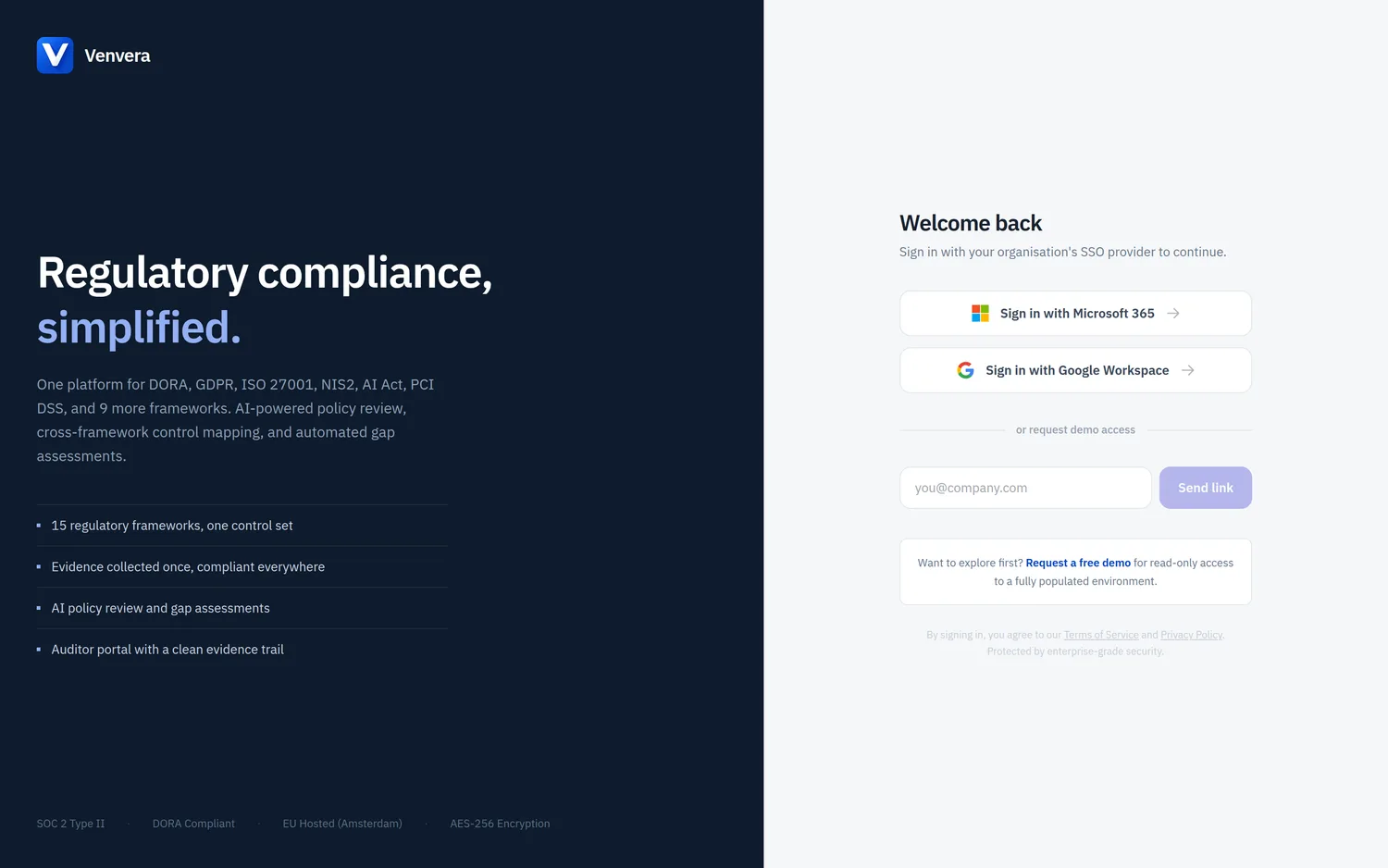
Navigate to app.venvera.com in your browser. You will see the Venvera sign-in page with the Venvera logo and a sign-in button.
Click the blue button with the Microsoft logo. You will be redirected to Microsoft's authentication page. Enter your work email and password if prompted.
On your first sign-in, Microsoft may ask you to grant Venvera access to your basic profile (name and email). Click Accept. Your organisation's IT admin may have already pre-approved this via Azure AD enterprise application consent.
After successful authentication you will land on the Compliance Overview dashboard. From here you can navigate to any enabled framework using the sidebar.
Signing in with Google Workspace
If your organisation uses Google Workspace instead of (or in addition to) Microsoft 365, click Sign in with Google Workspace on the sign-in page. You are redirected to Google to authenticate, then returned to the Compliance Overview dashboard. Venvera matches you to your organisation the same way it does for Microsoft sign-in.
Supported browsers
Venvera works in all modern browsers: Chrome, Firefox, Edge, and Safari. We recommend keeping your browser up to date for the best experience.
Multi-tenant support
Venvera supports multi-tenant Azure AD. This means users from any Microsoft 365 organisation can sign in - Venvera matches you to your organisation based on your Azure AD tenant ID. If your organisation hasn't been set up yet, contact your administrator.
Session duration
Your session lasts 8 hours by default. After that you'll be asked to sign in again. Closing your browser tab does not end your session - you can return to Venvera and pick up where you left off.
New organisations and demo access
Venvera also supports self-serve signup for new organisations (start a plan or a 14-day trial and verify your email with a one-time code) and read-only demo access requested from the sign-in page. The invite note below applies when you are joining an organisation that already exists in Venvera.