
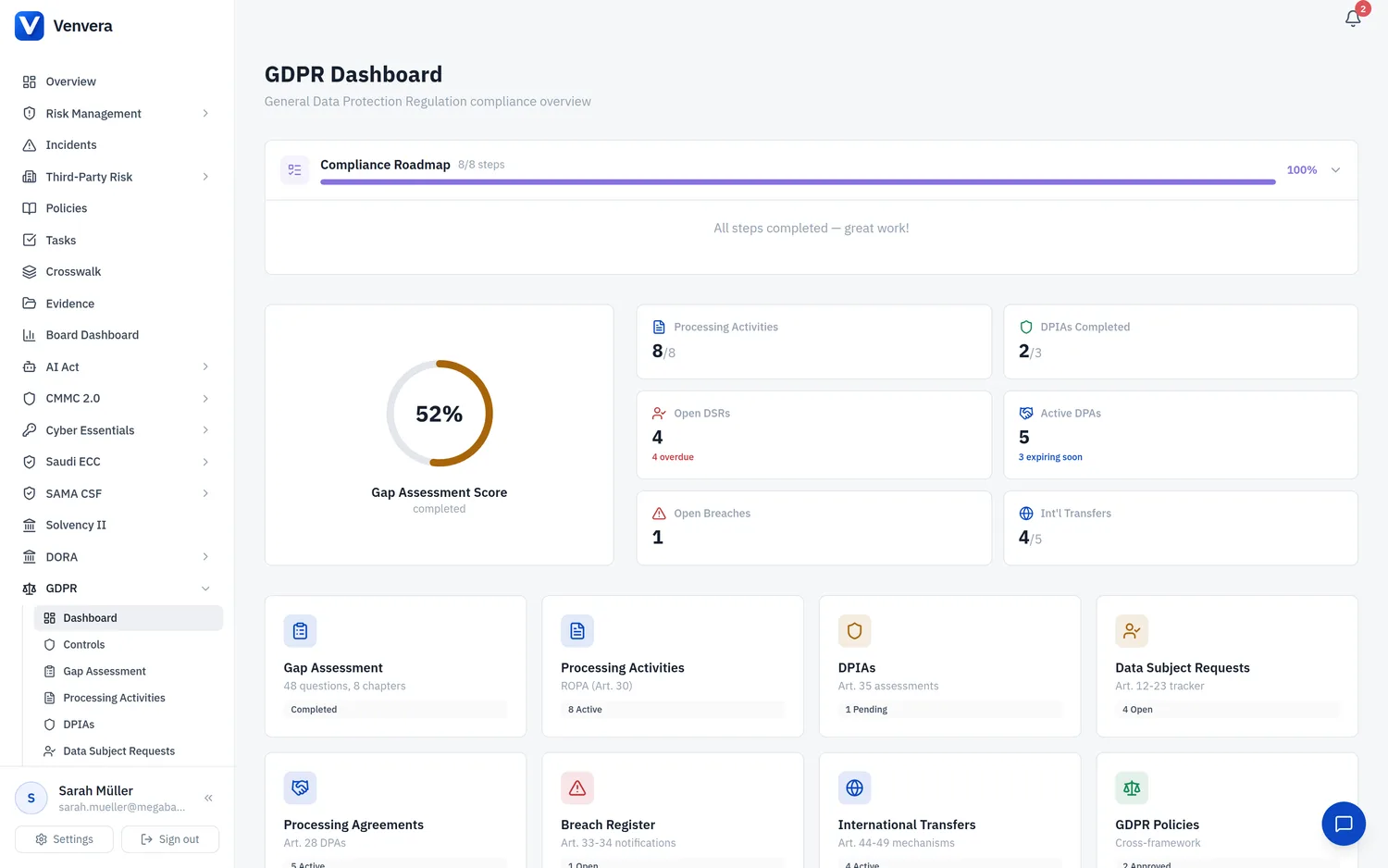
The GDPR module in Venvera provides a comprehensive, centralized workspace for managing your organization's compliance with the General Data Protection Regulation (EU) 2016/679. This overview article walks you through every element of the GDPR Dashboard, explains each metric and visualization, and shows you how to navigate to the individual sub-modules for deeper management.
The GDPR module does not operate in isolation. It pulls data from other Venvera modules - including approved policies, ICT incidents, and ICT risk assessments - to give you a unified compliance posture. Any policy tagged with a GDPR-relevant category, any incident that involves personal data, and any risk that touches data processing will automatically surface in the GDPR Dashboard's cross-framework reference panels.
Accessing the GDPR Dashboard
From the main sidebar, expand the GDPR section. Click on Dashboard (the first item in the GDPR navigation group). The dashboard loads with all metrics computed in real time from your organization's GDPR data.
At the top of the dashboard, you will see a row of summary metric cards. Each card displays a primary count and, where applicable, a breakdown of sub-statuses. These cards give you an at-a-glance view of your GDPR program's health before you dive into any specific area.
Below the header metrics, the dashboard presents a grid of module cards. Each card corresponds to a GDPR sub-module (Processing Activities, DPIAs, DSRs, DPAs, Breaches, International Transfers, and Gap Assessment). Clicking any card navigates you directly to that sub-module's list or management view.
Dashboard Metrics in Detail
Gap Assessment Score (Ring Chart)
The Gap Assessment Score is displayed as a ring chart (donut chart) in the upper-left area of the dashboard. This visualization represents your organization's overall GDPR maturity based on the dedicated GDPR Gap Assessment, which contains 48 questions organized across 8 chapters. The ring chart fills proportionally to your score: a full ring represents a perfect 4.0 maturity score, while an empty ring indicates no assessment has been completed.
The center of the ring displays the numeric score (e.g., "3.2 / 4.0") along with a qualitative label:
| Score Range | Label | Color |
|---|---|---|
| 0.0 - 0.9 | Initial | Red |
| 1.0 - 1.9 | Developing | Orange |
| 2.0 - 2.9 | Defined | Yellow |
| 3.0 - 3.4 | Managed | Light Green |
| 3.5 - 4.0 | Optimized | Green |
Below the ring chart, you will find a mini breakdown showing each of the 8 chapters with their individual chapter scores. This lets you immediately identify which chapters are dragging down your overall maturity. Clicking the ring chart or the "View Assessment" link navigates you to the full GDPR Gap Assessment page.
Processing Activities Metric
This metric card shows three values:
| Sub-Metric | Description |
|---|---|
| Total | The total number of processing activity records in your ROPA (Record of Processing Activities), regardless of status. |
| Active | Processing activities with a status of "Active" - these are currently being performed by your organization and are subject to ongoing compliance obligations. |
| Under Review | Processing activities flagged as "Under Review" - these require attention, typically because of a change in legal basis, purpose, or data categories, or because a periodic review cycle has triggered. |
DPIAs Metric
The Data Protection Impact Assessments metric card displays:
| Sub-Metric | Description |
|---|---|
| Total | All DPIA records created in the system. |
| Completed | DPIAs that have been fully assessed, with risk mitigation measures documented and DPO opinion recorded. |
| Pending | DPIAs that are still in progress or awaiting review. These are highlighted in amber if they have been pending for more than 30 days. |
Data Subject Requests (DSRs) Metric
The DSR metric card provides visibility into your Art. 12-23 compliance performance:
| Sub-Metric | Description |
|---|---|
| Total | All data subject requests received and logged in the system. |
| Open | Requests that are currently being processed and have not yet been completed, rejected, or marked exempt. |
| Overdue | Requests that have exceeded their 30-day response deadline without a recorded response. These are highlighted in red as they represent a compliance risk and potential regulatory exposure. |
Under GDPR Article 12(3), data subject requests must be responded to within one month (approximately 30 calendar days). Extensions up to two additional months are possible for complex requests but must be communicated to the data subject within the initial 30-day period. An overdue count greater than zero should be treated as urgent and addressed immediately.
Data Processing Agreements (DPAs) Metric
| Sub-Metric | Description |
|---|---|
| Total | All DPA records in the system. |
| Active | DPAs that are currently in force (start date has passed, end date has not). |
| Expiring Soon | DPAs whose end date falls within the next 90 days. These are flagged to give you adequate time to renegotiate, renew, or terminate the processing arrangement. |
Breaches Metric
| Sub-Metric | Description |
|---|---|
| Total | All personal data breach records logged in the breach register. |
| Open | Breaches that are still under investigation or have been contained but not yet formally closed. Open breaches may require regulatory notification within the 72-hour window specified in Art. 33. |
International Transfers Metric
| Sub-Metric | Description |
|---|---|
| Total | All recorded international data transfer arrangements. |
| Active | Transfers currently in operation. Each active transfer should have a valid transfer mechanism (adequacy decision, SCCs, BCRs, or approved derogation) and, where applicable, a completed Transfer Impact Assessment (TIA). |
Cross-Framework References
The bottom section of the GDPR Dashboard contains cross-framework reference panels that surface data from other Venvera modules:
| Panel | Source Module | What It Shows |
|---|---|---|
| Approved Policies | Policies Module | Policies that have been approved and are tagged with GDPR-relevant categories (e.g., Data Protection Policy, Privacy Policy, Data Retention Policy). Shows policy name, approval date, next review date, and owner. |
| Related Incidents | Incidents Module | ICT incidents that have been classified as involving personal data or that are linked to a GDPR breach record. Shows incident title, classification, status, and date. |
| Data-Related Risks | ICT Risks Module | Risk entries from the ICT risk register that pertain to data processing, privacy, or personal data security. Shows risk title, treatment decision, and current risk level. |
The cross-framework panels on the GDPR Dashboard can be used as source material for your DPO's board report. By combining gap assessment scores with policy compliance, incident history, and risk treatment data, you can present a comprehensive data protection posture to senior management and the board of directors, fulfilling the accountability principle under Art. 5(2).
Module Navigation Cards
Each module card on the dashboard displays the module name, a brief description, the primary metric count, and a link to the full sub-module view. The cards are arranged in a responsive grid and include:
- Gap Assessment - Navigate to the 48-question maturity assessment
- Processing Activities - Navigate to the ROPA management table
- DPIAs - Navigate to the impact assessment list
- Data Subject Requests - Navigate to the DSR tracker
- Data Processing Agreements - Navigate to the DPA register
- Breach Register - Navigate to the breach management view
- International Transfers - Navigate to the transfer register
Each card also shows a small status indicator: a green dot if all items in that sub-module are in a healthy state, an amber dot if there are items requiring attention, or a red dot if there are overdue or critical items that need immediate action.
Filtering and Date Ranges
The GDPR Dashboard supports a date range filter in the top-right corner, allowing you to scope the metrics to a specific time period. This is particularly useful for quarterly or annual compliance reviews. When a date range is applied, all metrics recalculate to reflect only the records created or active within that window. The Gap Assessment Score is always shown as current (not date-filtered) since it represents a point-in-time maturity snapshot.
Exporting Dashboard Data
You can export the dashboard summary as a PDF report using the export button in the top-right area. The exported report includes all metric values, the ring chart visualization, cross-framework reference summaries, and a timestamp. This export is designed to serve as a periodic compliance snapshot for internal records, DPO reports, or supervisory authority requests.