
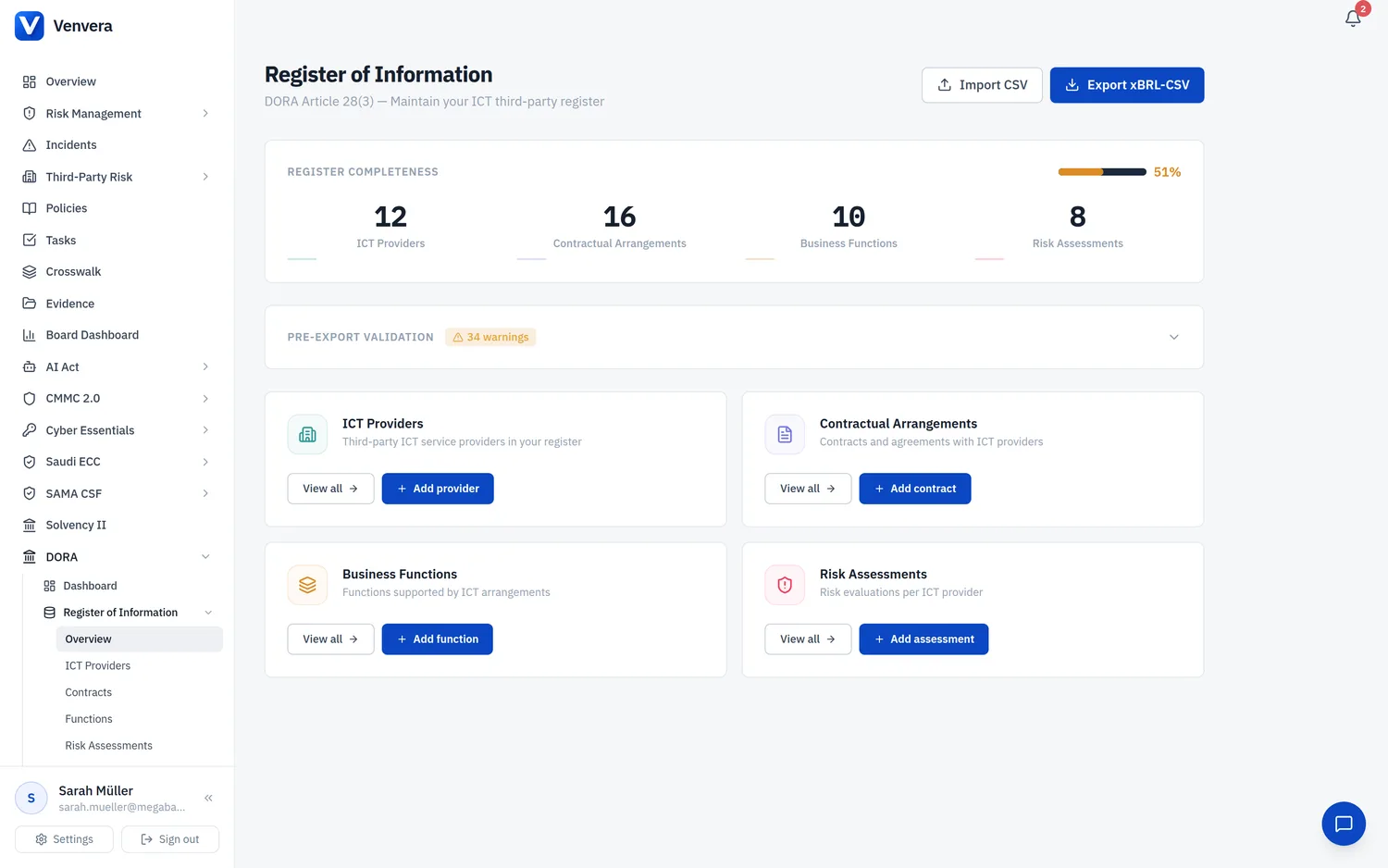
The Register of Information (RoI) is the cornerstone of DORA compliance. This article covers the regulatory background, the Venvera RoI dashboard, and every feature on the landing page - completeness scoring, CSV import, and pre-export validation.
1. Regulatory Context - Why the Register Exists
1.1 DORA Article 28(3) - The Legal Mandate
Article 28(3) of Regulation (EU) 2022/2554 (DORA) requires every in-scope financial entity to maintain and keep up-to-date a register of information on all contractual arrangements for ICT services provided by third-party service providers. This is a binding legal obligation from 17 January 2025. The register must include information at entity level and, where applicable, at sub-consolidated and consolidated levels.
1.2 Implementing Technical Standards - ITS 2024/2956
The European Supervisory Authorities (ESAs) - comprising the EBA, EIOPA, and ESMA - published Commission Implementing Regulation (EU) 2024/2956, which specifies the exact templates, data fields, and taxonomies that financial entities must use when populating and submitting their register. The ITS defines a set of standardised templates labelled B_01.01 through B_07.01, each covering a different aspect of the register. Venvera maps your business-language entries to these templates automatically during export, so you never need to memorise ESA alphanumeric codes.
The ITS defines 15 templates. Venvera generates all of them on export:
- B_01.01 - Entity maintaining the register (your organisation)
- B_01.02 - Entities within scope of the register
- B_01.03 - Branches
- B_02.01 - Contractual arrangements (general information)
- B_02.02 - Contractual arrangements (specific ICT service information)
- B_02.03 - Intra-group contractual arrangements
- B_03.01 - Entities signing the contractual arrangement (receiver)
- B_03.02 - ICT third-party service providers signing the arrangement
- B_03.03 - Entities providing ICT services (intra-group)
- B_04.01 - Entities making use of the ICT services
- B_05.01 - ICT third-party service providers
- B_05.02 - ICT service supply chains (sub-outsourcing)
- B_06.01 - Functions supported by ICT services
- B_07.01 - Assessment of ICT services (risk assessments)
- B_99.01 - Internal reference definitions
1.3 Who Must Submit and to Whom
Every financial entity within the scope of DORA Article 2 must submit its register to its National Competent Authority (NCA). The NCA varies by Member State and by entity type - for example, BaFin in Germany, the Central Bank of Ireland (CBI), or ACPR/AMF in France. The submission is made in xBRL-CSV format, which is the structured data format specified by the ESAs. Venvera generates this export for you automatically.
NCAs may request the register at any time, not only on a fixed schedule. Financial entities should therefore ensure the register is kept continuously up to date, rather than treating it as a periodic reporting exercise.
1.4 Entities in Scope (Article 2)
DORA applies to a wide range of financial entities. Article 2 enumerates the following types:
- Credit institutions
- Payment institutions
- Electronic money institutions
- Investment firms
- Insurance and reinsurance undertakings
- UCITS management companies and alternative investment fund managers (AIFMs)
- Central counterparties (CCPs) and central securities depositories (CSDs)
- Trade repositories
- Crypto-asset service providers (CASPs) and issuers of asset-referenced tokens
- Institutions for occupational retirement provision (IORPs)
- Credit rating agencies
- Crowdfunding service providers
- Securitisation repositories
- Administrators of critical benchmarks
If your organisation falls under any of these categories, you are required to maintain a Register of Information.
1.5 Proportionality Principle
DORA includes a proportionality principle. Micro-enterprises and entities with limited ICT risk profiles may apply simplified requirements, but they are not exempt from maintaining the register itself. The depth and granularity of the information may be proportionate to the entity's size, nature, scale, and complexity, but the core obligation to record all ICT third-party arrangements remains in force.
1.6 Deadline Context
DORA became applicable on 17 January 2025. Financial entities were expected to have their registers populated by this date. NCAs have begun requesting registers as part of supervisory reviews. Entities that fail to maintain a complete register face potential enforcement actions, supervisory measures, and reputational risk.
2. RoI Structure - The Four Pillars
Venvera organises the Register of Information around four interconnected pillars. Understanding how these pillars relate to each other is essential for building a complete and accurate register.
2.1 ICT Providers
This pillar captures all ICT third-party service providers your organisation relies upon. Each provider record includes identifying information (name, LEI, country), classification (criticality level, provider type), and corporate structure details. Providers are the foundation of the register - you cannot create contracts or risk assessments without first registering the provider.
2.2 Contractual Arrangements
Contracts link your organisation to its providers. Each contractual arrangement record captures the contract reference, type, dates, cost, service details, data locations, and Article 30 clause compliance. A single provider may have multiple contracts (for example, separate agreements for cloud hosting and professional services).
2.3 Business Functions
Business functions represent the organisational capabilities that depend on ICT services. Each function is linked to one or more contracts, creating the chain that demonstrates which provider supports which business function. Functions carry criticality assessments, RTO (Recovery Time Objective), and RPO (Recovery Point Objective) values that feed into operational resilience planning.
2.4 Risk Assessments
Risk assessments evaluate the risk posed by each ICT provider arrangement. They consider factors such as concentration risk, substitutability, data sensitivity, and geographic location. Assessment records link back to providers and contracts, completing the full picture.
2.5 The Interconnection Chain
The data flows in a clear chain: Entity → Contract → Provider → Function. Your organisation (the entity) enters into contracts with ICT providers. Those contracts support specific business functions. Risk assessments overlay this chain to evaluate the resilience implications. Completeness is calculated based on how well this chain is populated.
3. Completeness Score
At the top of the RoI overview page, you will find the Register Completeness panel. This provides an at-a-glance measure of how ready your register is for NCA submission.
3.1 How Completeness Is Calculated
The overall completeness percentage is a weighted composite of four metrics:
- Providers - counts how many provider records have all required fields completed (display name, country, provider type, criticality).
- Contracts - counts how many contract records have all required fields completed (provider link, reference, type, start date) and have Article 30 clauses assessed.
- Functions - counts how many registered business functions are linked to at least one contract.
- Assessments - counts how many risk assessments have been fully completed.
A record is considered “complete” only when every mandatory field is filled and the record is linked to other relevant records in the chain. For example, a contract without a linked provider is incomplete, and a function without a linked contract is incomplete.
3.2 Progress Bar and Colour Thresholds
The completeness score is displayed as a progress bar beside the percentage value. The colour of both the bar and the percentage text changes based on thresholds:
| Score Range | Colour | Meaning |
|---|---|---|
| 70% and above | Green | Register is in good shape and approaching NCA-readiness. Continue filling remaining gaps. |
| 40% to 69% | Amber | Register has significant gaps. Prioritise missing provider details and unlinked contracts. |
| Below 40% | Red | Register is substantially incomplete. Immediate action is required before any NCA request can be fulfilled. |
3.3 Four Metric Cards
Below the progress bar, four metric cards display the total count of records in each pillar: ICT Providers, Contractual Arrangements, Business Functions, and Risk Assessments. Each card shows a large numeric count with a label and a coloured accent bar. When no data has been loaded yet, the count displays as a dash (-).
4. Pre-Export Validation
Before you export your register, Venvera runs an automated validation check against the ITS template requirements. The validation panel appears below the completeness score whenever issues are detected.
4.1 Error vs. Warning Severity
Validation issues are classified into two severity levels:
- Errors (red badge with count) - these will cause your NCA to reject the submission. Errors typically represent missing mandatory fields, invalid identifiers, or broken linkages (e.g., a contract referencing a non-existent provider).
- Warnings (amber badge with count) - these will not prevent submission but may trigger follow-up questions from your NCA. Warnings typically represent best-practice recommendations such as missing LEI codes or unpopulated optional fields.
4.2 Template Codes
Each validation issue displays a template code in monospace font (e.g., [B_05.01], [B_02.01]). This code tells you exactly which ITS template is affected, making it easy to identify where the problem lies:
[B_02.01]- General contract information[B_02.02]- Specific ICT service details[B_02.03]- Intra-group arrangements[B_05.01]- Provider issues[B_06.01]- Function issues
4.3 How to Fix Issues
Click the validation panel header to expand the full list of issues. Each issue displays the template code and a human-readable message describing the problem. Navigate to the affected record (provider, contract, or function), fill in the missing information, and save. The validation will re-run automatically when you return to the overview page.
4.4 All Clear State
When all validation checks pass and you have at least one provider registered, a green confirmation banner appears: “All validation checks passed. Register is ready for export.” This confirms your register meets the minimum ITS requirements for NCA submission.
4.5 Export Warning Modal
If you click Export xBRL-CSV while validation errors exist, a warning modal appears instead of immediately triggering the download. The modal shows:
- The number of unresolved validation errors.
- A preview of the first 10 errors with their template codes.
- Two action buttons: Fix Issues First (closes the modal so you can address problems) and Export Anyway (proceeds with the export despite errors).
5. CSV Import
The CSV Import feature allows you to bulk-load data into the register from spreadsheet files, which is especially useful during initial setup or when migrating from another system.
5.1 Opening the Import Modal
Click the Import CSV button in the top-right corner of the overview page. A modal dialog appears with three configuration options.
5.2 Step-by-Step Import Workflow
Choose what type of data you are importing from the Data Type dropdown. Options are: ICT Providers, Contractual Arrangements, or Business Functions. The expected column format changes based on your selection.
Structure your CSV file with the column headers shown below. The first row must contain column names. Accepted file extensions are .csv and .txt.
Click the file input or drag a file onto it. Select your prepared CSV file from your computer.
Press the Import button. The button text changes to “Importing...” while the operation runs. Do not close the modal during processing.
A results panel appears showing the count of imported records, skipped records, and any row-level errors. The completeness score refreshes automatically after a successful import.
5.3 Column Formats by Data Type
Providers
| Column | Type | Required | Description |
|---|---|---|---|
| provider_name | Text | Required | Display name of the provider |
| lei | Text (20 chars) | Optional | Legal Entity Identifier |
| country | ISO 3166 alpha-2 | Required | Headquarters country code (e.g., DE, FR, US) |
| provider_type | Text | Required | Type of provider (e.g., Cloud Service Provider) |
| criticality | Text | Required | critical, important, or supporting |
| is_intragroup | Boolean | Optional | true or false - whether provider is in your corporate group |
| contact_name | Text | Optional | Name of the provider contact person |
| contact_email | Text | Optional | Email address of the contact |
Contracts
| Column | Type | Required | Description |
|---|---|---|---|
| contract_reference | Text | Required | Unique reference for the contract |
| provider_lei or provider_name | Text | Required | Links contract to a provider by LEI or name |
| contract_type | Text | Required | Type of contractual arrangement |
| service_type | Text | Optional | ICT service type |
| start_date | Date (YYYY-MM-DD) | Required | Contract start date |
| end_date | Date (YYYY-MM-DD) | Optional | Contract end date |
| annual_cost | Number | Optional | Annual cost of the arrangement |
| currency | Text (3 chars) | Optional | EUR, USD, GBP, CHF, or BGN |
Functions
| Column | Type | Required | Description |
|---|---|---|---|
| function_name | Text | Required | Name of the business function |
| licensed_activity | Text | Optional | Licensed activity the function supports |
| is_critical | Boolean | Optional | true or false - whether the function is critical |
| rto_hours | Number | Optional | Recovery Time Objective in hours |
| rpo_hours | Number | Optional | Recovery Point Objective in hours |
5.4 Results Display
After the import completes, the results panel appears with a coloured border:
- Green border - all rows imported successfully. Shows “Imported N records.”
- Amber border - some rows had issues. Shows the imported count, skipped count, and a scrollable list of row-level error messages.
Common errors include duplicate references, invalid country codes, and unrecognised provider types. Fix the errors in your CSV file and re-import if needed.
6. Section Cards
The lower portion of the overview page displays a 2×2 grid of section cards, one for each pillar of the register:
| Card | Icon | Description | Actions |
|---|---|---|---|
| ICT Providers | Building icon (teal accent) | Third-party ICT service providers in your register | View all - opens the providers list page. Add provider - opens the new provider form. |
| Contractual Arrangements | Document icon (indigo accent) | Contracts and agreements with ICT providers | View all - opens the contracts list page. Add contract - opens the new contract form. |
| Business Functions | Layers icon (amber accent) | Functions supported by ICT arrangements | View all - opens the functions list page. Add function - opens the functions page for adding a new entry. |
| Risk Assessments | Shield icon (rose accent) | Risk evaluations per ICT provider | View all - opens the risk assessments list page. Add assessment - opens the new assessment form. |
Each card is styled as a glass-effect panel that highlights on hover. The two action buttons are at the bottom of each card: a secondary button for “View all” and a primary button for adding a new record.
7. Exporting for NCA Submission
The Export xBRL-CSV button in the top-right corner generates the complete register in the format required by your NCA. During export, Venvera automatically:
- Converts all business-language labels to ESA alphanumeric codes (e.g., “Cloud Service Provider” becomes
PT_0101). - Structures data into the correct ITS template sheets (B_01.01 through B_07.01).
- Applies the xBRL-CSV taxonomy header rows and metadata.
- Packages everything into a downloadable archive.
You do not need to understand ESA codes or xBRL-CSV formatting - Venvera handles the translation layer entirely.