
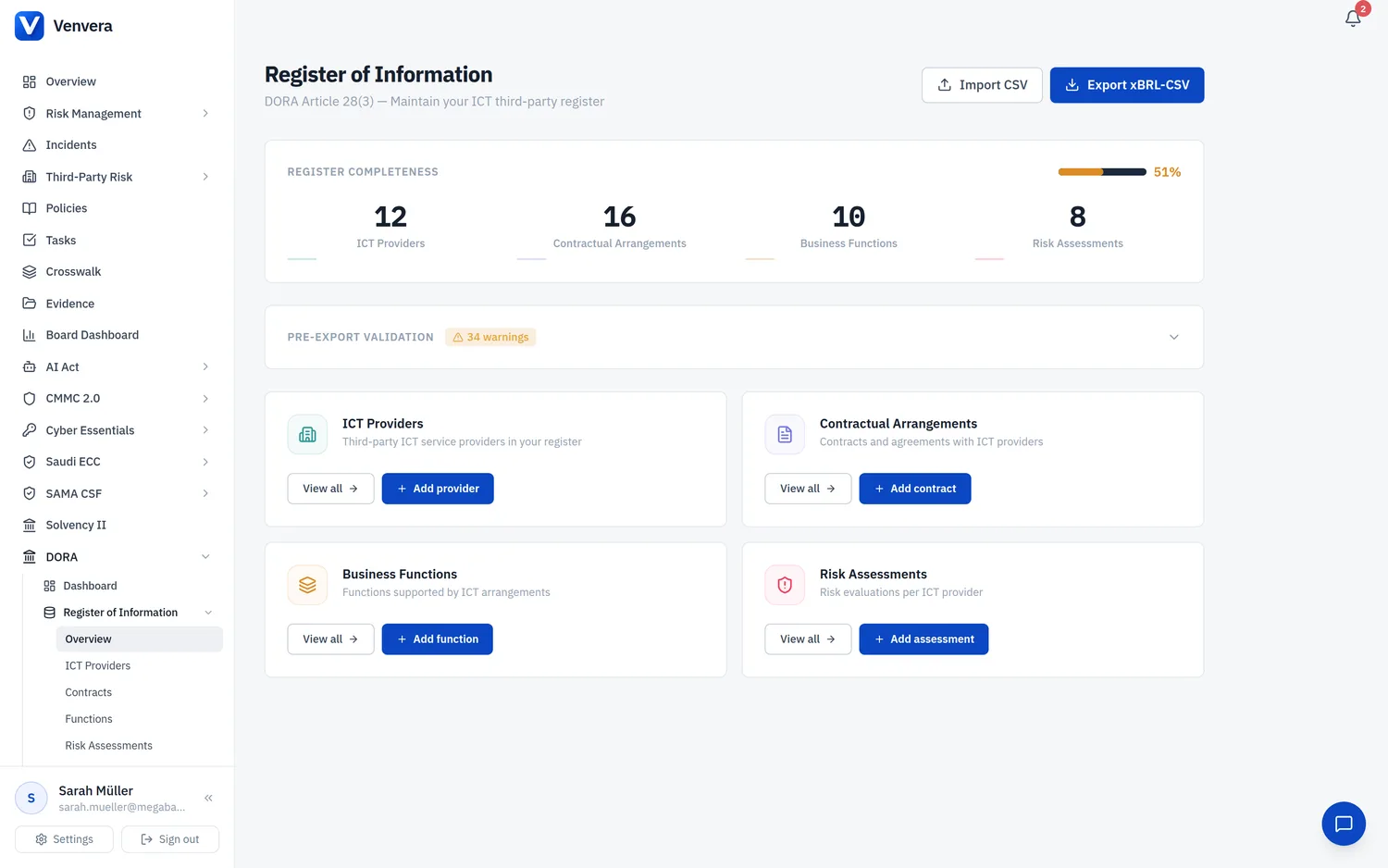
The Contractual Arrangements module tracks every agreement your financial entity has with its ICT third-party service providers. This article explains the regulatory requirements of DORA Article 30, documents every field in the contract form, covers the Article 30 Clause Checker, and describes the full contract lifecycle from draft through termination.
1. Regulatory Context - Article 30 Contractual Provisions
1.1 Why Contracts Must Include Specific Provisions
DORA Article 30 establishes minimum contractual requirements for every ICT service agreement. The contract must ensure the entity retains oversight, can recover from disruptions, and can exit without undue harm. Article 30 prescribes specific clauses that must be present, particularly for critical or important functions. Non-compliant arrangements may trigger supervisory action under Article 28(5).
1.2 Article 30(2) - All Required Clauses Explained
Article 30(2) lists the following minimum provisions that must appear in every contractual arrangement for ICT services. Venvera tracks compliance with each of these through the Article 30 Clause Checker (see section 5 below).
- Art. 30(2)(a) - SLAs: Clear service descriptions with quantitative and qualitative performance targets (uptime, response times, throughput).
- Art. 30(2)(b) - ICT Security: Provisions on data availability, authenticity, integrity, and confidentiality, including security certifications and encryption standards.
- Art. 30(2)(c) - Incident Notification: Notice periods and reporting obligations for ICT incidents and significant changes.
- Art. 30(2)(d) - Audit Rights: Right to access, inspect, and audit the provider, including on-site inspections and control reviews.
- Art. 30(2)(e) - Termination and Transition: Clear termination rights with adequate transition periods, data migration, and knowledge transfer obligations.
- Art. 30(2)(f) - Data Location: Description of data storage and processing locations, with notification obligations for planned changes. Intersects with GDPR.
- Art. 30(2)(g) - Sub-outsourcing: Subcontracting conditions, notification requirements, approval rights, and monitoring of subcontractors.
- Art. 30(3) / Art. 28(8) - Exit Strategy: Orderly termination without disrupting business or limiting compliance. Critical for arrangements supporting important functions.
1.3 ITS Templates for Contracts
Contractual data feeds into B_02.01 (general information), B_02.02 (specific ICT service details), and B_02.03 (intra-group arrangements). Venvera routes data to the correct template automatically.
2. Contracts List Page
Navigate to Register of Information → Contractual Arrangements to view all contracts.
2.1 Search
The search bar filters contracts by reference number or provider name. Filtering is applied automatically as you type.
2.2 Status Filter
Use the status dropdown to filter contracts by lifecycle stage:
- All statuses - shows all contracts (default).
- Active - contracts currently in force.
- Draft - contracts not yet finalised or signed.
- Expiring - contracts approaching their end date.
- Expired - contracts that have passed their end date without renewal.
- Terminated - contracts that have been explicitly terminated.
2.3 Table Columns
| Column | Description |
|---|---|
| Reference | Contract reference identifier. Click to open detail/edit page. |
| Provider | Linked provider display name. Click to open provider detail. |
| Type | Arrangement type (e.g., Outsourcing agreement). |
| Period | Start and end dates in your tenant date format. |
| Annual Cost | Cost with currency prefix (e.g., EUR 50,000) or dash. |
| Status | Badge: green Active, grey Draft, amber Expiring, red Expired/Terminated. |
| Functions | Count of linked business functions. |
| Actions | Edit (pencil) and Delete (trash) buttons. |
2.4 Empty State
When no contracts exist, a prompt card with an “Add contract” button is shown.
3. Add Contract Form - Field-by-Field Documentation
The new contract form is divided into four sections: Contract Details, ICT Service Details, DORA ITS Regulatory Fields, and Article 30 Clauses.
3.1 Contract Details Section
| Field | Type | Required | Description |
|---|---|---|---|
| ICT Provider | Dropdown | Required | Select the provider this contract is with. Lists all registered providers by display name. If no providers exist, an alert links to the new provider form. |
| Contract Reference | Text input | Required | Internal reference identifier (e.g., “AWS-2025-001”). Should be unique and meaningful. Becomes the primary label for the contract. |
| Contract Type | Dropdown | Required | Arrangement type from the ESA dictionary: Outsourcing agreement, Licensing agreement (software), Service level agreement, Subscription agreement, Framework agreement, Master services agreement, Maintenance/support agreement, Professional services agreement, Other. ESA codes (CA_01xx) are applied on export. |
| Start Date | Date picker | Required | The date the contract takes effect. |
| End Date | Date picker | Optional | The expiry date. Leave blank for evergreen contracts. Used to calculate status. |
| Annual Cost | Number input | Optional | Annual cost without currency symbols (e.g., 50000.00). |
| Currency | Dropdown | Optional | Currency: EUR (default), USD, GBP, CHF, BGN. |
3.2 ICT Service Details Section
This section captures the specific ICT service information required by ITS 2024/2956 for template B_02.02.
| Field | Type | Required | Description |
|---|---|---|---|
| ICT Service Type | Dropdown | Optional | ICT service category from the ESA dictionary (e.g., Cloud computing - IaaS/PaaS/SaaS, Software - Core banking, ICT network services). Select “Auto-detect from provider” to infer from the provider type on export. |
| Parent Arrangement | Dropdown | Optional | If this is a sub-arrangement under a master agreement, select the parent contract. Select “None (standalone)” for top-level arrangements. |
| Service Description | Text input | Optional | Brief description of the ICT service (e.g., “Cloud hosting for production banking application”). |
| Data Storage Locations | Multi-select | Optional | Countries where data is stored at rest. Hold Ctrl/Cmd to multi-select. Includes EU/EEA and common third countries. Maps to Art. 30(2)(f) and has GDPR implications. |
| Data Processing Locations | Multi-select | Optional | Countries where data is actively processed. Same country list. May differ from storage locations. |
3.3 DORA ITS Regulatory Fields Section
These fields capture additional data points required by the EBA DORA ITS templates.
| Field | Type | Required | Description |
|---|---|---|---|
| Notice Period - Entity (days) | Number input | Optional | Calendar days of notice the entity must give to terminate. Typical values: 30-180 days. |
| Notice Period - Provider (days) | Number input | Optional | Calendar days of notice the provider must give to terminate or significantly change services. |
| Governing Law Country | Dropdown | Optional | Country whose law governs the contract. NCAs may flag non-EU governing law as a risk factor. |
| Country of Provision | Dropdown | Optional | Country from which the ICT service is primarily delivered. |
| Data Sensitivity | Dropdown | Optional | Low, Medium, or High. High applies to personal data, financial transactions, or regulatory information. |
| Reliance Level | Dropdown | Optional | Low (easily replaceable), Medium (material, alternatives exist), or High (critical dependency). Feeds into concentration risk analysis. |
| Termination Reason | Textarea | Optional | Reason for termination. Applicable only when the arrangement is being terminated. |
4. Notes Section
| Field | Type | Required | Description |
|---|---|---|---|
| Notes | Textarea (3 rows) | Optional | Free-text area for any additional internal notes about this contract. Not included in the xBRL-CSV export. |
5. Article 30 Clause Checker
The Article 30 Clause Checker is a dedicated component that appears on both the new contract form and the edit form. It tracks whether each required contractual provision under Article 30(2) is present in the actual contract document.
5.1 How It Works
For each of the eight required clauses, you can set three states:
- Green check (present) - click the check icon to confirm that this provision is present in the contract. The icon turns green with a coloured background.
- Red X (missing) - click the X icon to indicate that this provision is missing from the contract. The icon turns red with a coloured background.
- Not assessed (default) - neither icon is selected, shown with a grey warning triangle in read-only views. The clause has not yet been reviewed.
A compliance badge in the top-right corner shows the percentage of required clauses confirmed as present: green “Compliant” badge at 100%, amber percentage badge at 50-99%, and red percentage badge below 50%.
5.2 All Eight Clauses Explained
| Clause | Article | What to Look For |
|---|---|---|
| SLAs | 30(2)(a) | Defined uptime %, response times, throughput commitments, escalation procedures. |
| ICT Security | 30(2)(b) | Encryption standards, access controls, security certifications, data protection. |
| Incident Notification | 30(2)(c) | Who to notify, timeframes, required information in incident reports. |
| Audit Rights | 30(2)(d) | Right to on-site inspections, access to premises, review of controls. |
| Termination / Transition | 30(2)(e) | Notice periods, data return obligations, continued service during wind-down. |
| Data Location | 30(2)(f) | Specific countries and regions for storage/processing, change notification. |
| Sub-outsourcing | 30(2)(g) | Notification of subcontracting, approval rights, right to object. |
| Exit Strategy | 30(3)/28(8) | Orderly termination plan without business disruption or compliance gaps. |
5.3 Compliance Count
Below the clause list, a summary line shows: “N of 8 required clauses confirmed.” If compliance is below 100%, an additional note appears: “Contracts supporting critical functions must include all clauses.”
6. Edit Page Additions
The contract edit page includes all the same fields as the new contract form, plus two additional features:
6.1 Status Dropdown
The edit page adds a Status dropdown with five options: Draft, Active, Expiring, Expired, Terminated. This field is not present on the new contract form - new contracts receive an automatic initial status.
6.2 Document Upload and Management
The edit page includes a Contract Documents section for attaching files to the contract record.
Uploading Documents
Click the Upload button in the documents section header. This opens a file picker dialog.
Choose a file from your computer. Accepted file types are: PDF (.pdf), Word documents (.docx), Excel spreadsheets (.xlsx), CSV files (.csv), plain text (.txt), and images (.png, .jpg, .jpeg).
The button text changes to “Uploading...” while the file is being processed. Once complete, the document appears in the documents list below.
Managing Documents
Each document shows its filename, file size (KB/MB), upload date, and provides Download and Delete buttons. When no documents are attached, an empty-state message is shown.
7. Contract Status Workflow
Contracts follow a defined lifecycle in the register. Understanding the status progression helps you maintain accurate records.
Being negotiated or prepared. Not yet signed. Grey badge. Use for pre-populating the register during negotiations.
Signed and in force. Green badge. Primary focus for Article 30 clause compliance and risk assessment.
End date approaching. Amber badge. Set when renewal discussions should begin.
Past end date without renewal. Red badge. Should be either renewed or terminated.
Explicitly ended. Red badge. Use the Termination Reason field to document why. Remains for audit trail.
8. ESA Contract Type Codes
When your register is exported, Venvera maps each contract type to its ESA alphanumeric code:
| Business Label | ESA Code |
|---|---|
| Outsourcing agreement | CA_0101 |
| Licensing agreement (software) | CA_0102 |
| Service level agreement | CA_0103 |
| Subscription agreement | CA_0104 |
| Framework agreement | CA_0105 |
| Master services agreement | CA_0106 |
| Maintenance/support agreement | CA_0107 |
| Professional services agreement | CA_0108 |
| Other contractual arrangement | CA_0199 |