
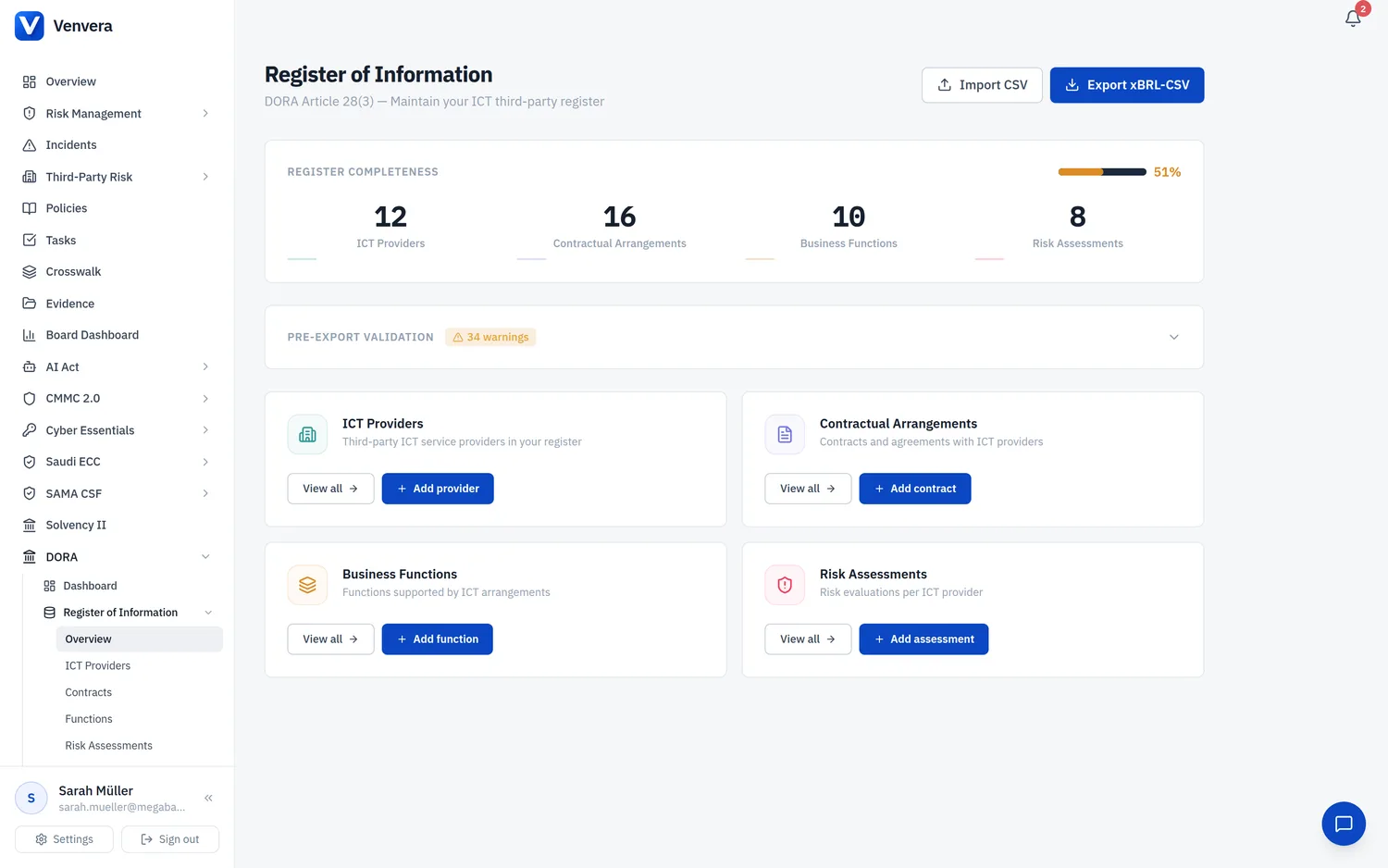
The ICT Providers module captures every third-party ICT service provider your financial entity relies upon. This article explains the regulatory obligations under DORA Article 28, walks through every field in the provider form, and covers the CTPP classification feature, LEI lookup, and provider management workflows.
1. Regulatory Context
1.1 Article 28 - ICT Third-Party Risk Management
DORA Article 28 imposes comprehensive due diligence and ongoing monitoring obligations on financial entities regarding their ICT third-party service providers. Before entering into any contractual arrangement, the financial entity must:
- Assess whether the arrangement concerns a critical or important function.
- Evaluate the risks of concentration, including the risk arising from contracting with providers that are not easily substitutable.
- Conduct appropriate due diligence on the provider, including its information security capabilities, business continuity planning, and operational resilience posture.
- Identify and assess conflicts of interest that may arise from the contractual arrangement.
These obligations apply regardless of whether the ICT service is provided by an external vendor or by an intra-group entity. DORA explicitly distinguishes intra-group arrangements under Article 28(1)(a), recognising that while intra-group providers share the same corporate governance, they still represent a separate risk profile that must be assessed and documented.
1.2 What Is an ICT Third-Party Service Provider?
DORA Article 3(19) defines an “ICT third-party service provider” as an undertaking providing ICT services. This broad definition covers any entity - whether a cloud hyperscaler, a software vendor, a freelance consultant, or an intra-group shared services centre - that provides ICT services under a contractual arrangement.
1.3 Why Register ALL Providers
The ITS requires financial entities to register all ICT third-party service providers, not only those supporting critical functions. This enables NCAs to build a sector-wide picture of concentration risk. Even “Supporting” providers must appear in the register.
1.4 Proportionality for Micro-Entities
Microenterprises may benefit from a simplified ICT risk management framework, but they are not exempt from maintaining provider records. The level of detail may be proportionate to the entity's size, but the obligation to record each provider remains in force.
1.5 ITS Templates
Provider information feeds into ITS templates B_05.01 and B_03.01. Venvera auto-generates the required ESA codes (PT_01xx for provider types) during export.
2. Provider List Page
Navigate to Register of Information → ICT Providers to access the provider list. This page displays all registered providers in a sortable, filterable table.
2.1 Search
The search bar at the top lets you filter providers by name. Type any part of the provider's display name or legal name to narrow the results. The search executes automatically as you type.
2.2 Criticality Filter
Use the dropdown beside the search bar to filter providers by criticality level. Options are:
- All criticality - shows all providers (default).
- Critical - shows only providers classified as critical.
- Important - shows only providers classified as important.
- Supporting - shows only providers classified as supporting.
2.3 Table Columns
| Column | Description |
|---|---|
| Provider | Display name (legal name shown below if different). Click to open detail page. |
| Type | Provider type (e.g., Cloud Service Provider). |
| Country | ISO 3166 alpha-2 headquarters country code. |
| Criticality | Colour-coded badge: red for Critical, amber for Important, teal for Supporting. |
| Contracts | Count of linked contractual arrangements. |
| LEI | 20-character LEI or dash if not provided. |
| Actions | Edit (pencil icon) and Delete (trash icon, with confirmation). |
2.4 Empty State
When no providers exist, a prompt card appears with an “Add provider” button.
3. Add Provider Form - Field-by-Field Documentation
Click Add provider from the list page or overview page to open the new provider form. The form is divided into three sections: Provider Details, Corporate Structure, and Contact Information.
3.1 Provider Details Section
| Field | Type | Required | Description |
|---|---|---|---|
| Display Name | Text input | Required | The business-friendly name you use internally for this provider (e.g., “AWS”, “Microsoft Azure”, “Salesforce”). This name appears throughout the application in lists, dropdowns, and reports. ESA codes are auto-generated on export, so you never need to enter an alphanumeric identifier. |
| Legal Name | Text input | Optional | The official legal entity name as registered in the provider's country of incorporation (e.g., “Amazon Web Services, Inc.”). This field is auto-filled by the LEI Lookup feature when you select a search result from the GLEIF database. |
| LEI | Text input (20 characters, uppercase enforced) | Optional | The 20-character Legal Entity Identifier issued by a GLEIF-accredited Local Operating Unit. Input is automatically converted to uppercase as you type. The maximum length is enforced at 20 characters. When a valid 20-character LEI is entered, a link icon appears allowing you to verify the LEI on the GLEIF website. While optional in the form, the ITS strongly recommends providing an LEI wherever available. If no LEI is available, use the Alternative ID fields instead. |
| Headquarters Country | Dropdown | Required | The country where the provider is headquartered, using ISO 3166 alpha-2 codes. The dropdown includes all 27 EU Member States plus select EEA and third countries: US, UK, CH, NO, IL, IN, SG, AE, JP, AU, CA. This field determines the geographic risk profile and feeds into concentration risk analysis. |
| Provider Type | Dropdown | Required | Categorises the nature of the provider's ICT services. Options are: Cloud Service Provider, Software Vendor, Data Center Operator, Network Provider, Managed Service Provider, Payment Processor, Security Provider, Infrastructure Provider, Consulting / Advisory, Other. On export, Venvera maps each type to an ESA code (PT_0101 through PT_0199). |
| Alternative ID | Text input | Optional (conditional) | This field is displayed only when the LEI field is empty. The DORA ITS requires an alternative identifier when no LEI is available. Enter the identifier value (e.g., a BIC code, DUNS number, or national registration number). |
| Alternative ID Type | Dropdown | Optional (conditional) | Shown alongside Alternative ID when no LEI is provided. Select the type of identifier: BIC (Swift code), DUNS number, National registration number (REG), Tax ID / VAT (TAX), or Other. |
| Intragroup Entity | Checkbox | Optional | Check this box if the provider is part of your corporate group (i.e., an intra-group ICT service provider). This distinction is required by DORA Article 28(1)(a) and affects which ITS template applies on export - intra-group arrangements use template B_02.03 instead of B_02.01. The helper text reads: “provider is part of your corporate group.” |
| Criticality | Radio buttons (3 options) | Required | Classifies the provider according to how critical its services are to your organisation. Options are explained below. Default selection is “Supporting.” |
Criticality Levels Explained
- Critical (red styling) - Supports a critical or important function per DORA Art. 3(22). Disruption would severely impact licensed activities. Subject to strictest Art. 30 requirements.
- Important (amber styling) - Supports important functions whose disruption would not immediately threaten viability. Warrants close monitoring.
- Supporting (branded styling) - Supports auxiliary functions. Disruption is manageable. Still must appear in the register.
3.2 Corporate Structure Section
| Field | Type | Required | Description |
|---|---|---|---|
| Person Type | Radio buttons (2 options) | Optional | Indicates whether the provider is a Legal person (a registered company or entity) or a Natural person (an individual contractor). This is a requirement of the EBA DORA ITS. The vast majority of providers will be legal persons. Defaults to “Legal person.” |
| Ultimate Parent ID | Text input | Optional | The identifier (typically an LEI) of the provider's ultimate parent entity. This is used in ITS template B_05.01 to map corporate ownership structures. Leave blank if the provider has no parent entity or is itself the ultimate parent. |
| Ultimate Parent ID Type | Dropdown | Optional | The type of identifier used for the ultimate parent. Options: Not applicable, LEI, BIC (Swift code), DUNS number, National registration number, Tax ID (VAT), Other. |
3.3 Contact Information Section
| Field | Type | Required | Description |
|---|---|---|---|
| Contact Name | Text input | Optional | The name of your primary contact or account manager at the provider. This is for internal reference and is not exported to the NCA. |
| Contact Email | Email input | Optional | Email address of the provider contact. Validated as an email format on input. |
3.4 Notes Section
| Field | Type | Required | Description |
|---|---|---|---|
| Notes | Textarea (3 rows) | Optional | Free-text area for any additional internal notes about this provider. Not included in the xBRL-CSV export. |
4. LEI Lookup - Step by Step
The LEI Lookup feature lets you search the Global Legal Entity Identifier Foundation (GLEIF) database directly from the provider form, saving time and reducing data entry errors.
Click the LEI Lookup button in the Provider Details section header. A modal dialog opens with a search input. If you have already entered a display name or legal name, the search field is pre-populated with that value and an automatic search is triggered.
Type the company name or paste a known LEI code into the search field. The search requires at least 2 characters. Results are fetched from the GLEIF API with a 400-millisecond debounce to avoid excessive requests while you type.
Search results appear as a scrollable list below the search field. Each result displays:
- Country badge - the 2-letter country code in a coloured tile.
- Legal name - the official registered name of the entity.
- Trading name - shown if different from the legal name (e.g., “Trading as: AWS”).
- LEI code - the 20-character identifier in monospace font.
- City and country - the registered address location.
- Entity status - a green “Active” badge or a red “Inactive” badge.
Click on any result to auto-fill the form. The following fields are populated automatically:
- LEI - set to the selected entity's LEI code.
- Legal Name - set to the entity's registered legal name.
- Display Name - set to the trading name (if available and the display name is currently empty), otherwise set to the legal name.
- Country - set to the entity's registered country code.
The modal closes automatically after selection.
5. Provider Detail Page
Clicking a provider name from the list page opens the detail view. This page shows all recorded information and provides access to the CTPP classification feature.
5.1 Detail Grid
The main content area shows a two-column definition list with the fields: Country, Type, LEI (or -), Criticality, Contact name (or -), and Contact email (or -). If notes were recorded, they appear below the grid. Creation and last-updated timestamps are shown at the bottom of the page.
5.2 Action Buttons
Three action buttons appear: CTPP Classify (runs classification algorithm), Edit (opens the edit form), and Delete (removes provider and all associated contracts after confirmation).
5.3 Quick Links
Two link cards on the right side provide quick access to Contracts and Risk Assessments filtered to this provider.
6. CTPP Classification
6.1 What Is a Critical Third-Party Provider?
Under DORA Article 31, the ESAs may designate certain ICT third-party service providers as Critical Third-Party Providers (CTPPs). CTPPs are subject to direct oversight by a Lead Overseer (one of the three ESAs) and must comply with additional requirements including recommendations and the possibility of penalty payments. Venvera’s CTPP classification feature provides a preliminary scoring to help you assess whether a provider might be considered critical at the sector level.
6.2 How the Scoring Works
When you click CTPP Classify, Venvera sends a POST request to the classification endpoint. The algorithm evaluates the provider against five criteria, each with a defined weight and a score from 0 to 10:
| Criterion | Weight | Description |
|---|---|---|
| Systemic importance | 25% | Degree to which a disruption would affect financial stability, considering the number and nature of financial entities relying on this provider. |
| Substitutability | 25% | Availability of alternative providers; complexity and cost of migration to alternatives. Note: low substitutability results in a higher criticality score (inverse relationship). |
| Concentration | 20% | Number of financial entities and share of the market relying on this provider. |
| Critical functions supported | 15% | Number and criticality of functions or services the provider supports within your register. |
| Interconnectedness / dependencies | 15% | Degree to which other providers depend on this provider through sub-outsourcing chains. |
The final score is a weighted sum of all criterion scores, resulting in a value between 0 and 10.
6.3 Classification Thresholds
- Score 7.0 and above - classified as Critical. The provider likely meets the criteria for CTPP designation.
- Score 4.0 to 6.9 - classified as Important. The provider warrants close monitoring.
- Score below 4.0 - classified as Supporting. Lower systemic risk.
6.4 Breakdown Display
After classification, a breakdown card shows each criterion with its label, weight, individual score out of 10, and a colour-coded bar (red for 70%+, amber for 40-69%, green below 40%). The total weighted score and classification badge appear at the bottom.
6.5 Score Card
The provider detail page score card shows the numeric score and classification badge once computed. Before classification, it reads “Not classified yet.”
7. ESA Code Mapping
Throughout the provider module, you work in plain business language. Venvera maintains a comprehensive ESA code dictionary that maps your entries to the alphanumeric codes required by the ITS. For provider types, the mapping is:
| Business Label | ESA Code |
|---|---|
| Cloud service provider | PT_0101 |
| Software provider | PT_0102 |
| Data centre provider | PT_0103 |
| Data analytics provider | PT_0104 |
| ICT managed service provider | PT_0105 |
| ICT security provider | PT_0106 |
| Network/telecoms provider | PT_0107 |
| Hardware provider | PT_0108 |
| Payment infrastructure provider | PT_0109 |
| Market data provider | PT_0110 |
| ICT consulting provider | PT_0111 |
| Other ICT third-party service provider | PT_0199 |
This mapping happens automatically during xBRL-CSV export. You do not need to enter or remember any codes.