
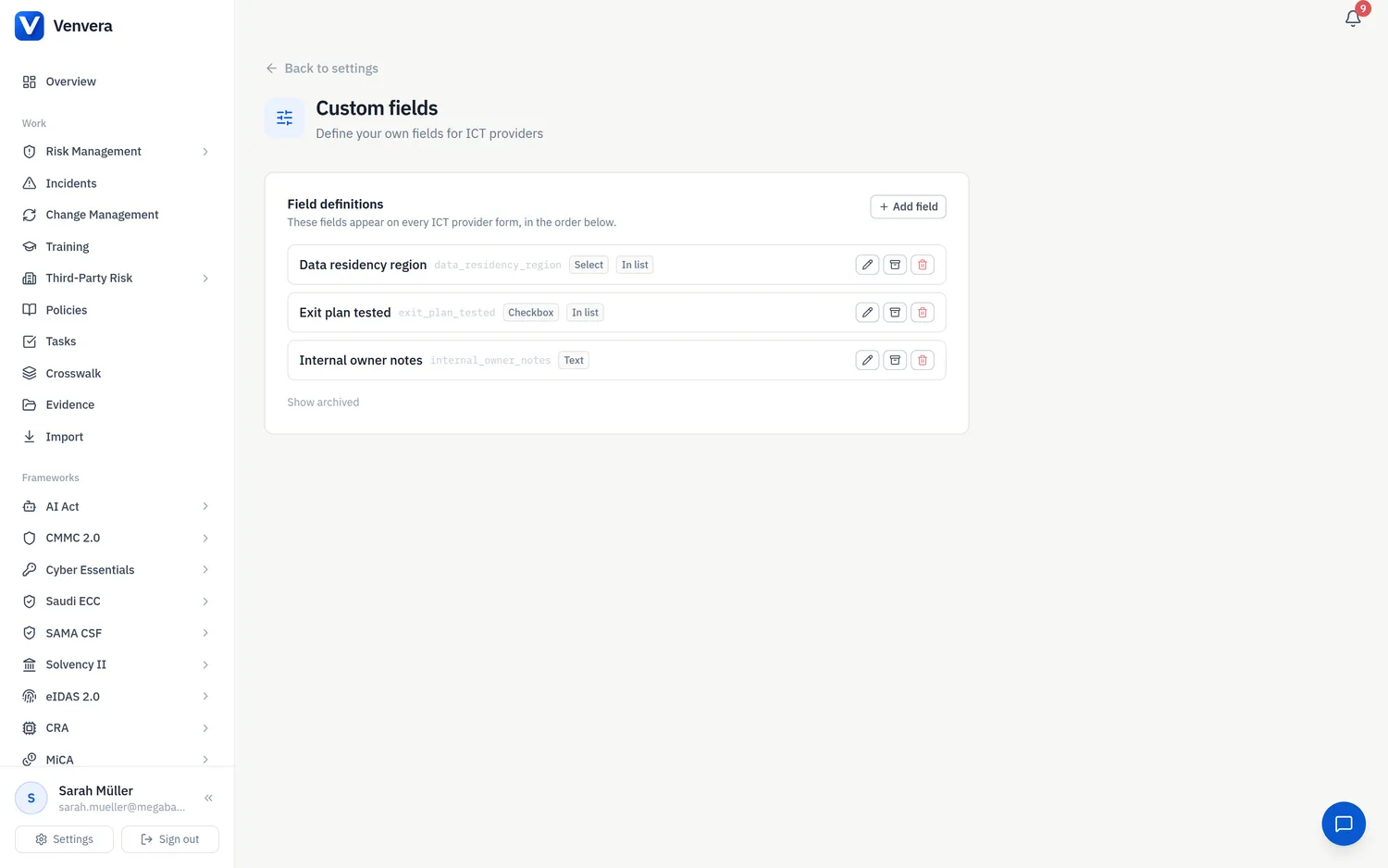
Custom fields let your organisation add its own fields to ICT provider records - house conventions like a data-residency region, an internal owner, or an exit-plan status that Venvera's standard provider form does not capture. Fields are defined once by an administrator and then appear on every provider form, for every user, in both the Third-Party Risk register and the DORA Register of Information provider pages (they are the same records).
Defining fields
Open Settings › Custom fields and click Add field. Each definition has:
| Property | Description |
|---|---|
| Label | What users see on the form, in the list and on the provider detail page. |
| Key | The stable machine name (lowercase, digits and underscores). It is suggested from the label and can be adjusted before saving, but cannot be changed afterwards - stored values are attached to it. |
| Type | One of six: Text, Number, Date, Select (one choice from a list you define), Multi-select (several choices) or Checkbox (yes/no). The type is also fixed after creation, so a value can never silently change meaning. |
| Options | For Select and Multi-select: the allowed choices, one per line. Values that are not on the list are rejected when a provider is saved. |
| Required | Required fields must be filled in when a new provider is created. Existing records are never blocked retroactively. |
| Show in list | Surfaces the field as a column in the provider register. The first three such fields (by order) are shown. |
Filling in values
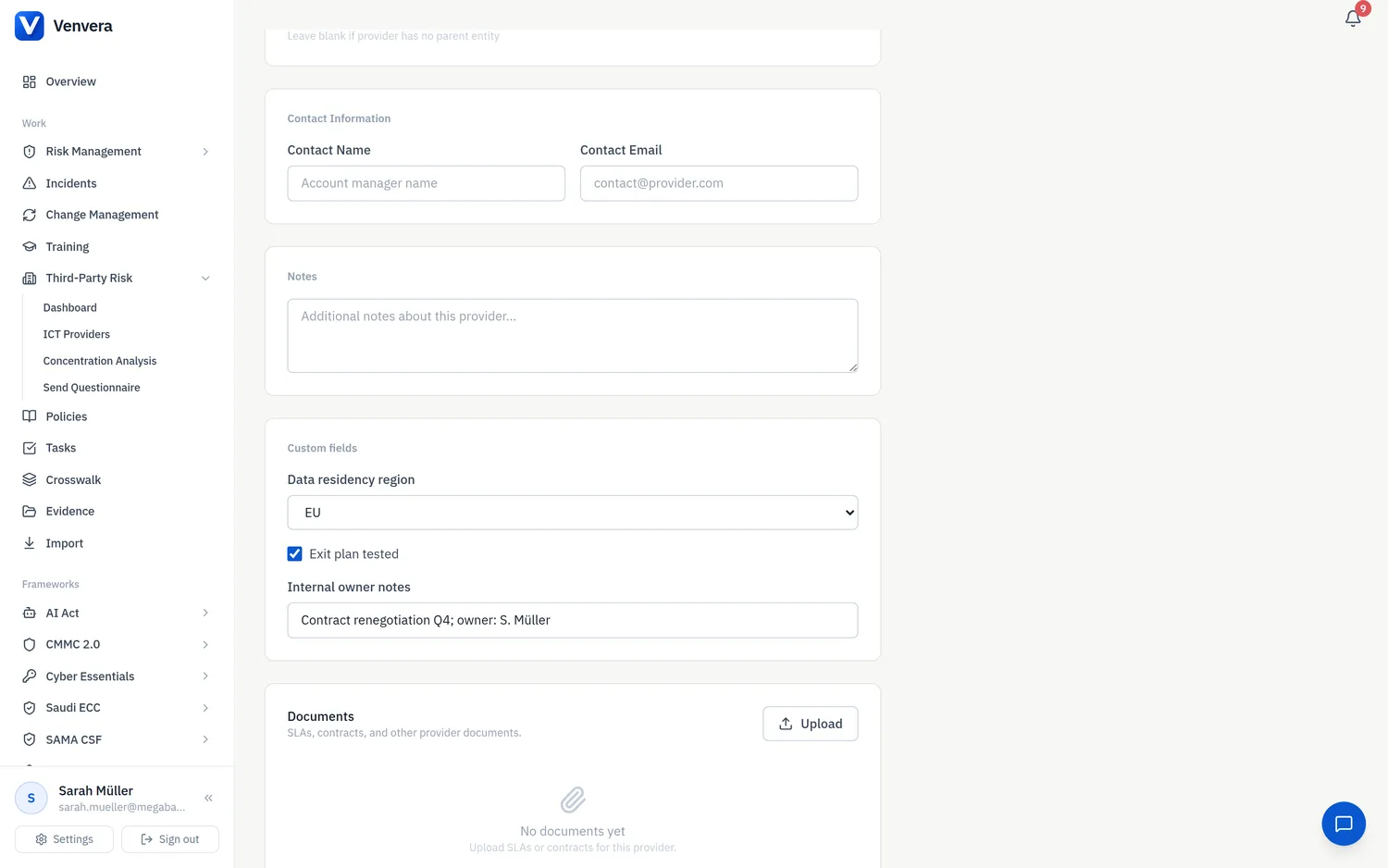
Once at least one field is defined, a Custom fields section appears on the provider form, after Notes. Values are validated against the definition when you save - a Select value must be one of the configured options, a Number must be numeric, a Date must be a real date - and any problem is shown next to the field itself. Saved values appear on the provider detail page and, for fields marked Show in list, as columns in the register.
Archiving and deleting
Archiving a field removes it from forms while keeping stored values readable on existing records; you can restore it at any time. Deleting a definition is permanent: stored values are not destroyed, but they become invisible until a definition with the same key is created again. When in doubt, archive.