
By default, no Venvera engineer can view your organisation's data without your explicit, time-bound approval. This article explains how the engineer-access approval flow works and where to find it.
The flow at a glance
- A Venvera engineer needs to look at your tenant (a support ticket, a bug investigation, a data fix).
- They open a Request access form, pick one tenant admin from your org as the approver, give a reason, and request a duration of up to 24 hours.
- The approver receives an email with a signed link and a six-digit code, plus a notification on their Venvera dashboard.
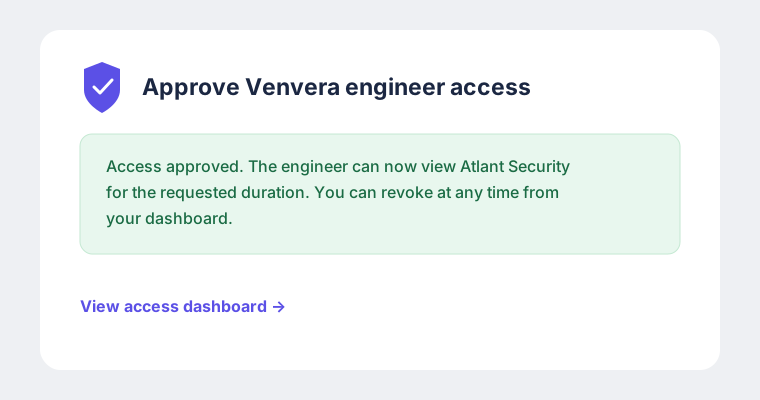
- The approver either clicks Approve in the dashboard, or opens the email link, signs in, and enters the six-digit code.
- Once approved, the engineer can view your tenant until the duration runs out, or until any of your tenant admins clicks Revoke now.
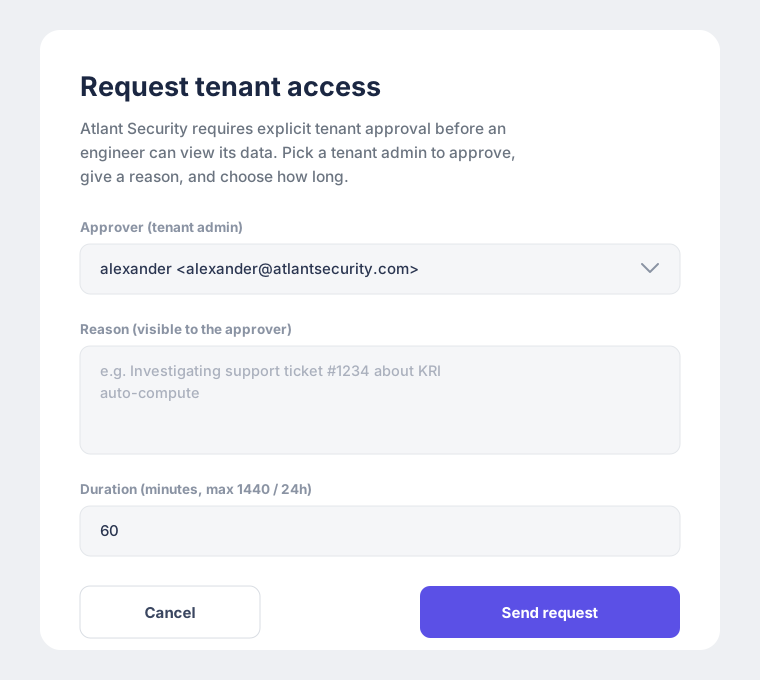
Where to manage requests
Tenant admins see all pending and active engineer-access requests at Engineer access requests in the sidebar (URL: /tenant-access). You can approve, deny, or revoke from there.
What the approver sees
- Who requested access (name and email).
- The reason they typed in, exactly as they typed it.
- The requested duration in hours and minutes.
- An Approve and a Deny button.
What gets logged
Every step is written to your audit log:
- The original request, including reason and requested duration.
- Your approval or denial, including the channel (in-app or email).
- Every action the engineer takes while the grant is active, tagged with the grant ID.
- Any revocation, including which tenant admin revoked it.
You can filter the audit log by the grant ID to see exactly what was looked at during the engineer's session.
Time-boxing and revocation
- The maximum duration that can be requested is 24 hours.
- If the engineer needs longer, they must submit a fresh request and you approve again.
- The viewing cookie issued to the engineer is capped at the grant's expiry - they cannot ride it past
expires_at. - Any tenant admin (not only the original approver) can revoke an active grant immediately. The engineer's next request after revocation is blocked.
Email approval channel
The email channel exists so that approval still works when the approver isn't already signed in. The approver must still authenticate as themselves before the code is accepted - clicking the link alone does not grant access. This protects you from auto-clicking mail scanners and accidentally-forwarded mailboxes.
What this is not
This is a procedural gate, not a cryptographic one - the application layer has the keys to decrypt your data, and a tenant admin's approval unlocks that path. If you need customer-managed encryption keys (BYOK) so that even Venvera engineers cannot decrypt without you releasing a key, contact us - that's a separate, larger arrangement that we offer to enterprise customers on request.