
AI Systems Inventory - Register, View & Manage AI Systems
The AI Systems Inventory is the foundational register of all artificial intelligence systems within your organisation's scope. Every other sub-module in the EU AI Act compliance programme links back to an AI system record. Before you can create technical documentation, register datasets, define human oversight measures, or conduct a risk classification, you must first register the AI system in this inventory. This article covers the list view, creation form, detail page, and edit functionality in comprehensive detail.
List View
The AI Systems list view presents all registered AI systems in a paginated table. The table supports searching, filtering, and sorting to help you quickly find specific systems in large inventories.
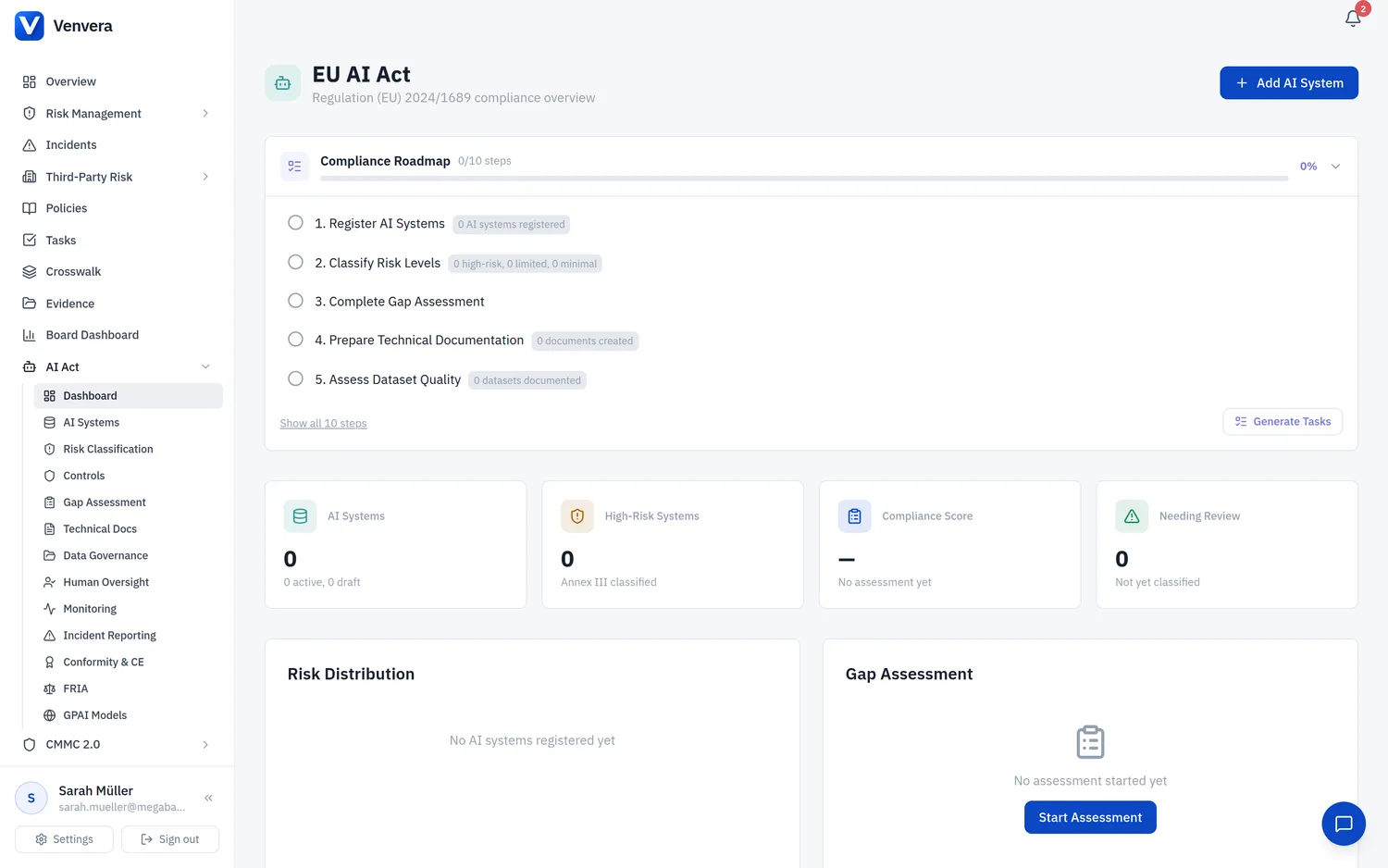
From the sidebar, navigate to EU AI Act → AI Systems. The list view loads showing all AI systems for your tenant, sorted by most recently updated. Each row displays the system name, status badge, risk classification (if assigned), role type, environment, and the last-updated timestamp.
Use the search bar at the top of the list to filter by system name or description. The search is case-insensitive and matches partial strings. For example, searching "fraud" will match "Fraud Detection Model v2" and "Anti-Fraud Scoring Engine".
Click the Status dropdown to filter by one or more statuses. Available statuses are:
- Draft - The system is being documented but is not yet deployed or operational. Draft systems are included in inventory counts but excluded from active compliance metrics until promoted.
- Active - The system is deployed and operational. Active systems carry full compliance obligations based on their risk classification.
- Deprecated - The system is still operational but scheduled for retirement. Deprecated systems remain subject to compliance obligations until fully retired.
- Retired - The system has been decommissioned and is no longer operational. Retired systems are retained in the inventory for audit trail purposes but are excluded from compliance metrics and risk distribution counts.
Click the Risk Level dropdown to filter by risk classification: Unacceptable, High, Limited, or Minimal. You can also select "Unclassified" to find systems that have not yet been through the Risk Classification Wizard. This filter is particularly useful for compliance officers who need to focus on high-risk systems first.
Creating a New AI System
Click the + Add AI System button in the top-right corner of the list view to open the creation form. All fields marked with Required must be completed before saving.
| Field | Type | Required | Description |
|---|---|---|---|
| Name | Text input | Required | A unique, descriptive name for the AI system. This name will appear throughout the platform wherever the system is referenced. Use a name that is meaningful to both technical and business stakeholders - e.g., "Customer Churn Prediction Model" rather than "ML-Model-042". Maximum 200 characters. The name must be unique within your organisation's inventory; duplicate names will be rejected with a validation error. |
| Description | Textarea | Optional | A free-text description of what the AI system does, its purpose, and its scope. This field supports up to 5,000 characters. Provide enough detail so that a non-technical reader can understand the system's function. Include information about the type of AI technique used (machine learning, expert system, statistical approach, etc.), the domain it operates in, and the decisions or outputs it produces. This description will be included in technical documentation exports and regulatory filings. |
| Role Type | Dropdown | Optional | Your organisation's role in relation to this AI system, as defined by the EU AI Act. Select one of:
|
| Version | Text input | Optional | The current version identifier of the AI system (e.g., "3.2.1", "2024-Q4", "v2.0-beta"). This is a free-text field that accommodates any versioning scheme your organisation uses. When you update the version field on an existing system, the previous version is recorded in the audit log for traceability. Version tracking is essential for Art. 12 record-keeping requirements. |
| Intended Purpose | Textarea | Optional | The specific intended purpose of the AI system as it will be communicated to users and documented in technical documentation per Art. 13. This should be a precise statement of what the system is designed to do - e.g., "To predict the likelihood of customer churn within the next 90 days based on usage patterns, support interactions, and billing history, for the purpose of enabling proactive retention campaigns." The intended purpose is a critical factor in risk classification and must be kept accurate and up to date. |
| Environment | Dropdown | Optional | The deployment environment of the AI system. Select one of:
|
| Department | Text input | Optional | The business department or unit responsible for the AI system (e.g., "Marketing Analytics", "Risk Management", "Customer Service"). This field helps with organisational mapping and accountability. If your organisation uses the business functions module, this should align with the registered business function names. |
| Technical Contact | Text input | Optional | The name or email of the primary technical contact responsible for the AI system's development and maintenance. This person will be the first point of contact for technical queries during audits, incident investigations, and conformity assessments. Enter a full name, email address, or both. |
| Business Contact | Text input | Optional | The name or email of the primary business contact or system owner. This person is accountable for the business decisions made using the AI system's outputs and for ensuring that the system is used within its intended purpose. This contact is typically a senior manager or product owner. |
AI System Detail Page
After creating an AI system, clicking its name in the list view opens the detail page. The detail page is divided into several sections:
Risk Classification Card
At the top of the detail page, a prominent card shows the system's current risk classification. If the system has not yet been classified, the card displays "Unclassified" with a button to launch the Risk Classification Wizard. If the system has been classified, the card shows the risk tier (Unacceptable, High, Limited, or Minimal) with the appropriate colour coding and a summary of the rationale from the classification wizard. You can reclassify the system at any time by clicking "Reclassify" - the previous classification is archived in the audit log.
Related Records
The detail page includes a tabbed section showing all records linked to this AI system across every sub-module. Each tab displays a count badge and a list of the most recent items:
| Tab | Content | Actions |
|---|---|---|
| Technical Docs | Lists all technical documentation records linked to this AI system, showing title, type, status, and completion percentage. The count badge shows the total number of documents. | Click any document to open its detail page. Use the + Add Document button to create a new document pre-linked to this AI system. |
| Datasets | Lists all datasets registered against this AI system, showing name, type, size, and bias assessment status. The count badge shows the total number of datasets. | Click any dataset to open its detail page. Use the + Add Dataset button to create a new dataset pre-linked to this AI system. |
| Oversight | Lists all human oversight measures, transparency notices, and related records for this AI system. Shows title, type, status, and next review date. | Click any record to open its detail page. Add new measures directly from this tab. |
| Monitoring | Lists all post-market monitoring plans for this AI system, showing title, frequency, and next review date. | Click to view details or add new monitoring plans. |
| Incidents | Lists all incidents linked to this AI system, showing title, severity, status, and detection date. Serious incidents are highlighted in red. | Click to view incident details. Add new incidents pre-linked to this system. |
| Conformity | Lists all conformity assessments for this AI system, showing type, status, valid-until date, and CE marking status. | Click to view assessment details. Initiate new assessments from this tab. |
Editing an AI System
From the detail page, click the Edit button to modify any field. The edit form is identical to the creation form, with all current values pre-populated. Changes are tracked in the audit log, recording the previous value, new value, timestamp, and the user who made the change. After saving, you are returned to the updated detail page.
Deleting an AI System
AI systems cannot be deleted through the standard interface. This is by design - the EU AI Act requires organisations to maintain records of all AI systems, including those that have been decommissioned. Instead, set the status to Retired to remove the system from active compliance tracking while preserving the audit trail. If a system was created in error and has no related records, a platform administrator can perform a hard delete from the admin panel.