
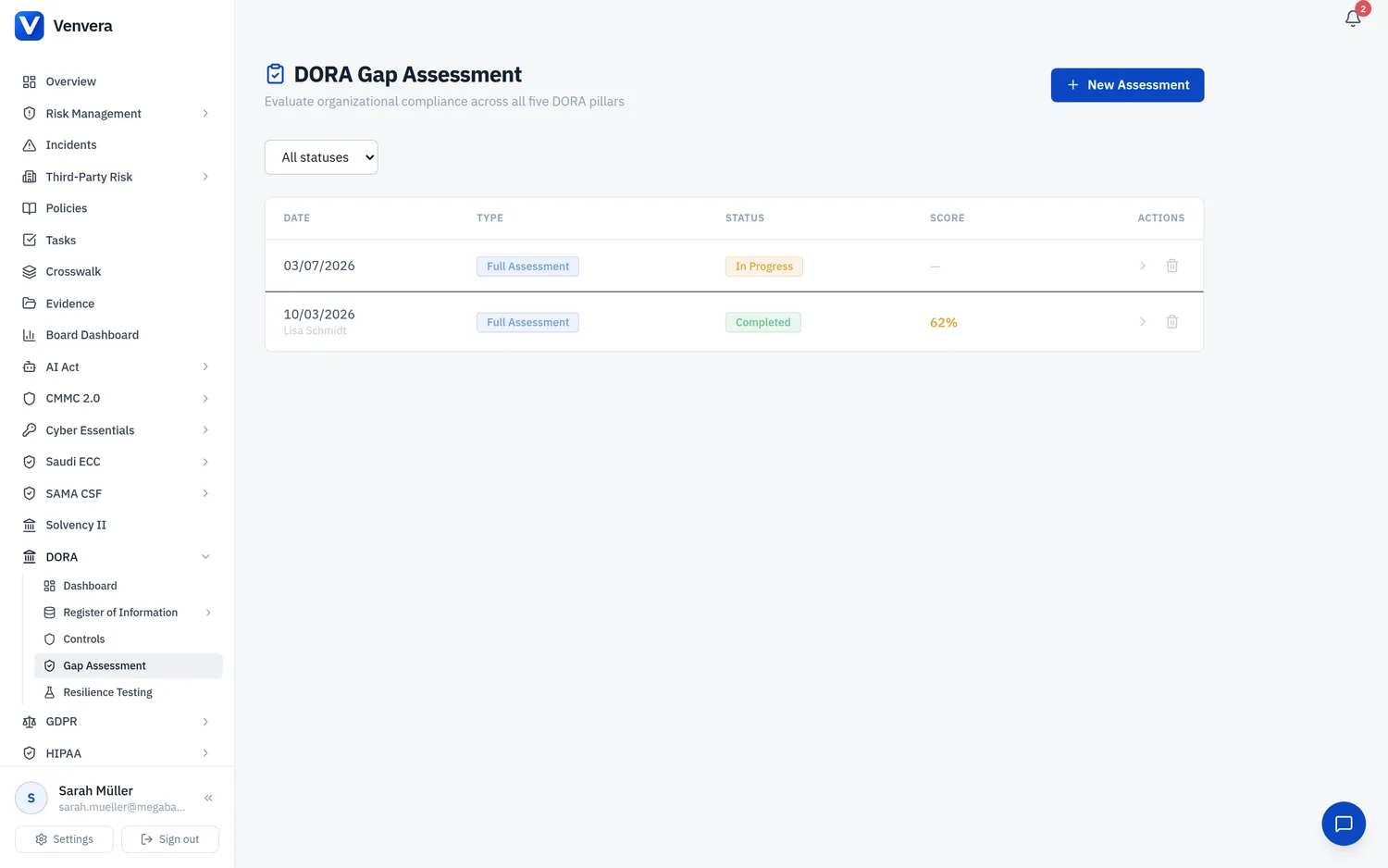
The DORA Gap Assessment module enables your organisation to systematically evaluate its compliance with every requirement of the Digital Operational Resilience Act across all five pillars. It uses a structured questionnaire approach with a weighted maturity scoring system that produces actionable, quantified results and an auto-generated remediation roadmap.
Regulatory Context
A gap assessment is the foundational step in any DORA compliance programme. Before you can build a remediation plan, you need to know exactly where your organisation currently stands against each article of the regulation. DORA does not prescribe a specific self-assessment methodology, but the ESAs expect financial entities to have a clear understanding of their compliance posture and to be able to demonstrate progress over time.
Venvera's gap assessment maps every question to the specific DORA article it addresses. This means your assessment results directly reference the regulation, making it straightforward to present findings to the management body, auditors, or the competent authority.
Assessment Types
When creating a new assessment, you choose between two types:
| Type | Questions | Scope | When to Use |
|---|---|---|---|
| Full Assessment | 69 questions | All 5 DORA pillars with questions at all weight levels (Critical, Important, Standard) | For comprehensive compliance evaluation. Recommended for most financial entities. |
| Micro-Entity | 31 questions | Only the highest-weight (Critical, W3) questions. Note: the Information Sharing pillar has no W3 questions, so a Micro-Entity assessment covers 4 of the 5 pillars. | For smaller entities qualifying under the proportionality principle (Article 4). Covers only the core regulatory requirements. |
Assessment List Page
The list page displays all gap assessments created by your organisation. It provides:
- A status filter dropdown to show only In Progress, Completed, or Archived assessments
- A New Assessment button to start a fresh evaluation
- A data table with columns for Date, Type (Full Assessment or Micro-Entity badge), Status (In Progress / Completed / Archived badge), Score (percentage with colour coding), and Actions (navigate or delete)
Scores are colour-coded: green above 70%, amber between 40-70%, and red below 40%. Assessments that have not been completed yet show a dash instead of a score.
Questionnaire Interface
When you open an assessment, the questionnaire presents a two-panel layout.
Left Sidebar - Pillar Navigation
The sidebar lists all five DORA pillars with visual indicators:
| Icon | Pillar | Articles | Full Questions |
|---|---|---|---|
| Shield | ICT Risk Management | Art. 5-14 | 19 questions |
| Alert | Incident Management | Art. 17-23 | 14 questions |
| Flask | Resilience Testing | Art. 24-27 | 12 questions |
| Handshake | Third-Party Risk | Art. 28-44 | 20 questions |
| Satellite | Information Sharing | Art. 45 | 4 questions |
Each pillar button shows:
- A completion percentage badge (green at 100%, amber when partially complete, grey when unanswered)
- A score progress bar (once any questions are answered) colour-coded red/amber/green based on the current pillar score
Clicking a pillar button switches the main panel to show that pillar's questions. Switching pillars automatically saves any pending changes from the previous pillar.
Pillar Score Preview
At the top of the main panel, a summary card shows the current pillar's name, article range, description, current percentage score, rating label (Significant Gaps / Partial Compliance / Compliant), a progress bar, and the number of questions answered out of the total.
Question Cards
Each question is displayed as a card with the following elements:
- Question number - A sequential label (Q1, Q2, etc.) within the pillar
- Article reference badge - Shows the specific DORA article (e.g., "Art. 5(1)-(2)")
- Weight badge - Indicates the question's importance:
- Critical (W3) - Red badge. Core regulatory requirements. Included in both Full and Micro-Entity assessments.
- Important (W2) - Orange badge. Significant requirements that enhance compliance.
- Standard (W1) - Grey badge. Supporting requirements that demonstrate maturity.
- Question text - The assessment question itself, written in plain language
- Guidance toggle - Click "Show guidance" to expand regulatory context and help text explaining what the question means and what evidence might demonstrate compliance
- Maturity buttons (0-4) - Five buttons for scoring the organisation's maturity level
- Notes field Optional - Free-text area for additional context or observations
- Evidence URL field Optional - Link to supporting documentation
Auto-save
Responses are automatically saved 1.5 seconds after the last change (debounced). A "Saving..." indicator appears in the top bar during save operations. You do not need to click a save button - just answer the questions and the system records your responses.
Maturity Scale
The assessment uses a 5-level maturity scale (0-4) that provides a consistent framework for evaluating each requirement:
| Score | Label | Description | What This Means in Practice |
|---|---|---|---|
| 0 | Not Implemented | No controls or processes in place | The organisation has not addressed this requirement at all. There are no policies, procedures, tools, or assigned responsibilities. |
| 1 | Initial | Ad-hoc, reactive processes with no formal documentation | Some activities may occur, but they are informal, inconsistent, and depend on individual knowledge. No documentation exists. |
| 2 | Developing | Partially documented, inconsistently applied | Policies or procedures have been drafted but are not yet fully implemented. Application varies across teams or systems. |
| 3 | Defined | Documented, consistently applied, and periodically reviewed | Formal policies and procedures are in place, staff are trained, and the process is applied consistently. This is the target maturity for DORA compliance. |
| 4 | Optimized | Continuously improved, measured, and aligned with best practices | Processes are actively measured, automated where possible, and continuously refined based on metrics, lessons learned, and emerging best practices. |
Scoring Formula
The scoring engine uses a weighted formula to ensure that critical requirements have more impact on the overall score:
Pillar Score = (Sum of score x weight) / (Sum of 4 x weight) x 100%
For example, if a pillar has three questions with weights 3, 2, and 1, and you score them 4, 3, and 2 respectively:
- Numerator: (4 x 3) + (3 x 2) + (2 x 1) = 12 + 6 + 2 = 20
- Denominator: (4 x 3) + (4 x 2) + (4 x 1) = 12 + 8 + 4 = 24
- Pillar Score: 20 / 24 x 100 = 83%
The overall score is the average of all pillar scores. Score thresholds are: below 40% = Red (Significant Gaps), 40-70% = Amber (Partial Compliance), above 70% = Green (Compliant).
Five Pillar Question Areas
ICT Risk Management (Art. 5-14) - 19 Questions
Covers governance (Art. 5), risk management framework (Art. 6), ICT systems (Art. 7), identification and asset inventory (Art. 8), protection including security policies, encryption, identity management, patch and change management (Art. 9), detection (Art. 10), response and BCP/DRP (Art. 11), backup (Art. 12), learning (Art. 13), and crisis communication (Art. 14).
Incident Management (Art. 17-23) - 14 Questions
Covers the incident management process (Art. 17), classification criteria aligned with DORA thresholds including all seven quantitative factors (Art. 18), regulatory reporting timelines - 4-hour initial notification, 72-hour intermediate report, 1-month final report (Art. 19), client notification (Art. 19(3)), post-incident reviews (Art. 17(3)), incident response team readiness, incident logging, and voluntary cyber threat reporting (Art. 19(2)).
Resilience Testing (Art. 24-27) - 12 Questions
Covers the resilience testing programme (Art. 24), testing methodology, vulnerability assessments and scanning (Art. 25), penetration testing, source code reviews, scenario-based testing, TLPT requirements for significant entities (Art. 26), remediation tracking, third-party provider inclusion in testing scope (Art. 24(2)(b)), and tester independence and qualification requirements (Art. 27).
Third-Party Risk (Art. 28-44) - 20 Questions
Covers ICT third-party risk strategy (Art. 28(2)), Register of Information (Art. 28(3)), pre-contractual due diligence (Art. 28(4)), ongoing monitoring (Art. 28(5)), concentration risk assessment (Art. 29), key contractual provisions including SLAs, audit rights, exit strategies, data location, sub-outsourcing controls, incident reporting, and BCP requirements (Art. 30), exit strategy testing (Art. 28(8)), proportionality assessment, competent authority notification, and provider criticality classification (Art. 31).
Information Sharing (Art. 45) - 4 Questions
Covers participation in cyber threat intelligence sharing, formal documentation of sharing arrangements, processes to ingest and act on shared intelligence, and management body approval of sharing participation.
Results Page
After completing all questions and clicking Complete Assessment, you are taken to the Results page which displays:
- Overall score ring - An animated circular gauge showing the aggregate score with colour coding (green/amber/red) and a rating label (Compliant / Partial Compliance / Significant Gaps)
- Pillar score bars - Five horizontal bars showing each pillar's score percentage with the pillar name and article range
- Detailed breakdown - For each pillar, every question is listed with its individual score badge (0-4, colour-coded), the question text, article reference, maturity label, and weight classification. Questions scoring below 3 are highlighted with a coloured left border (red for 0-1, amber for 2) to draw attention to compliance gaps.
- A prominent Remediation Roadmap button to navigate to the action planning page
Remediation Roadmap
The Remediation Roadmap is auto-generated from any question that scored below 3 (Defined). It provides a structured action plan for closing compliance gaps.
Summary Stats Grid
A 7-column statistics grid at the top shows: Total Items, Critical (priority), High (priority), Medium (priority), Open (status), In Progress (status), and Completed (status). Each cell displays a large number with a label, colour-coded for quick scanning.
Priority Mapping
Question weights are automatically mapped to remediation priorities:
- Weight 3 (Critical) maps to Critical priority - red badge
- Weight 2 (Important) maps to High priority - orange badge
- Weight 1 (Standard) maps to Medium priority - amber badge
Filter Bar
Two dropdown filters let you narrow the view by priority (Critical / High / Medium) and status (Open / In Progress / Completed / Deferred). A "Clear filters" link resets both.
Remediation Table
The table has six columns:
| Column | Type | Description |
|---|---|---|
| Action | Text | The auto-generated remediation action describing what needs to improve |
| DORA Article | Reference | The specific article reference for the gap |
| Priority | Badge | Critical / High / Medium, colour-coded |
| Status | Inline select | Editable dropdown: Open, In Progress, Completed, Deferred. Changes save immediately. |
| Owner | Inline input | Editable text field to assign an owner. Saves on blur or Enter key. |
| Due Date | Inline date | Editable date picker. Changes save immediately. |
Creating a New Assessment
From the DORA Dashboard, click the Gap Assessment module card, or use the sidebar navigation to reach the Gap Assessment list page.
Click the New Assessment button in the top-right corner of the list page.
The New Assessment page presents two selection cards side by side. Click the Full Assessment card for a comprehensive 69-question evaluation, or the Micro-Entity card for a focused 31-question assessment. The selected card is highlighted with a coloured ring.
Click the Start Assessment button. The system creates the assessment record and redirects you to the questionnaire interface, starting with the first pillar (ICT Risk Management).
Answer questions by clicking the maturity level buttons (0-4). Add optional notes and evidence URLs for each question. Use the pillar sidebar to navigate between pillars. Your responses auto-save as you work.
Once all questions across all pillars have been answered, the Complete Assessment button becomes active. Click it to finalise the assessment. All pillar responses are saved, overall scores are calculated, and you are redirected to the Results page.
Assessment Lifecycle
An assessment moves through the following statuses:
| Status | Badge Colour | Description |
|---|---|---|
| In Progress | Amber | Assessment is active. Responses can be added or modified. |
| Completed | Green | All questions answered and finalised. Scores are calculated and locked. |
| Archived | Grey | Archived for historical reference. Viewable but not modifiable. |
You can delete assessments from the list page using the trash icon. A confirmation dialog prevents accidental deletions.